Copy Trading With Zerodha with API Key
Start copy trading with Zerodha with api in just 3 easy steps using AlgoDelta. Connect your account, automate your trades, and simplify your trading workflow.

Table of contents
Introduction:
To connect Zerodha in AlgoDelta’s Copy Trading software, follow these steps: 1. GenerateAPI Key from the Zerodha trade Portal. 2. Add Zerodha Account Details in Algodelta’s Copy Trading
Step 1:
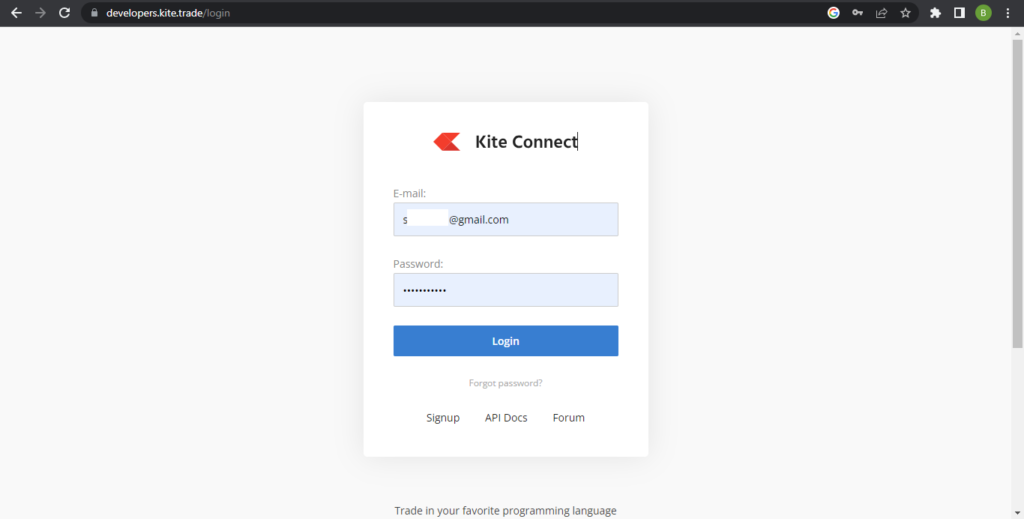
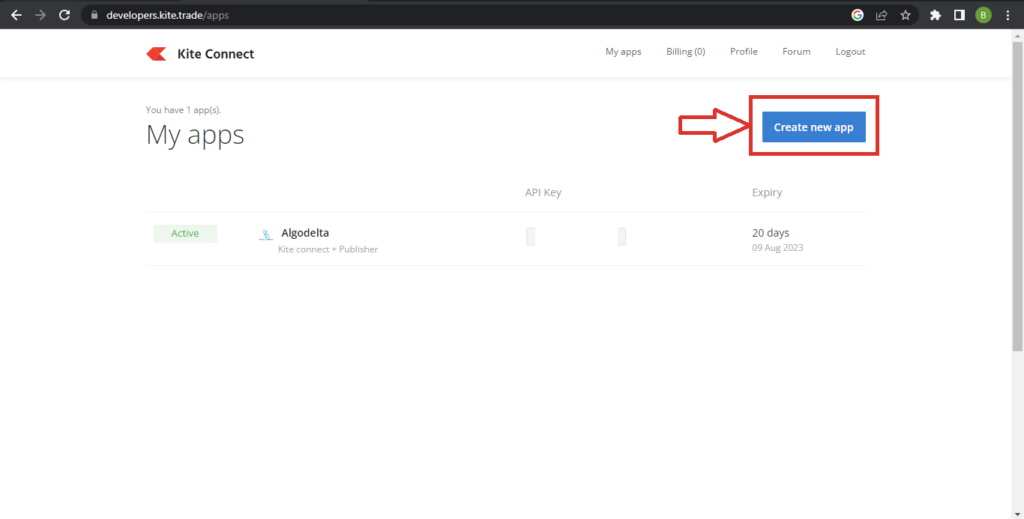
Open the Developer Kite website using the following link: https://developers.kite.trade/login Enter your Email ID and Password to log in. Once you logged in Click on ‘Create new app’ button for creating api.
Step 2:
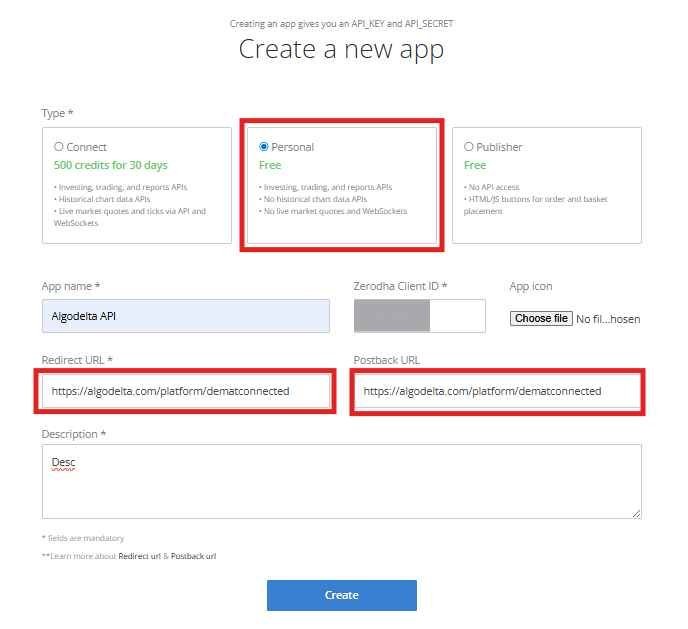
To create your Zerodha API app, select the “Personal” option and enter your preferred app name (example: “AlgoDelta”). Add your Zerodha Client ID, and for both the Redirect URL and Postback URL, enter https://algodelta.com/platform/dematconnected. Provide a short description for your app and click the Create button to complete the Zerodha API setup.
Your Zerodha API is now successfully generated, and you can proceed with integrating it for automated trading and platform connectivity.
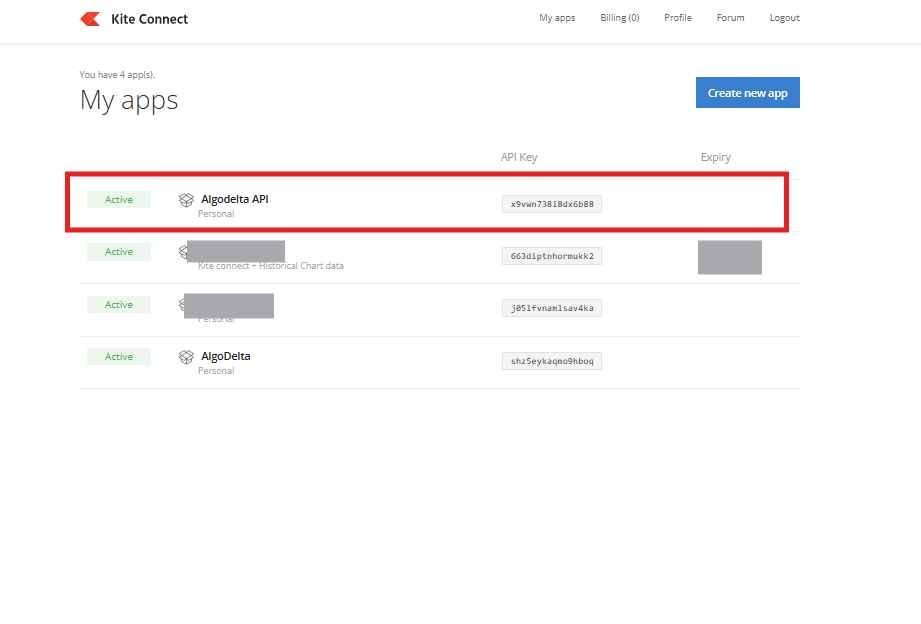
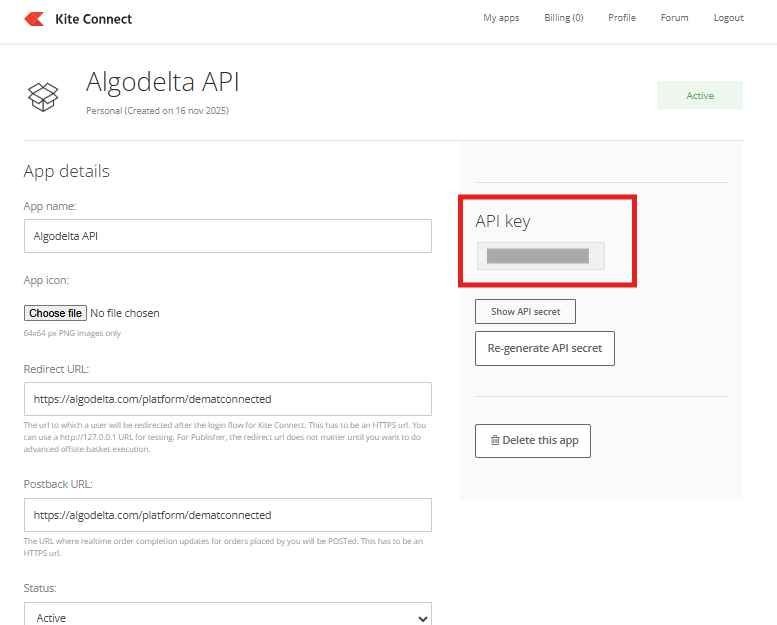
Now click on your newly generated API, and you will be able to view your Zerodha API Key and API Secret for further integration.
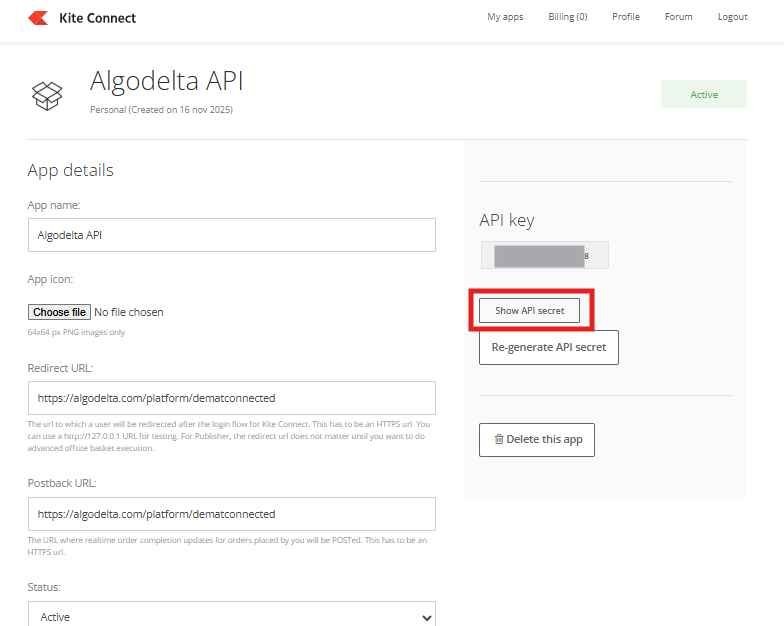
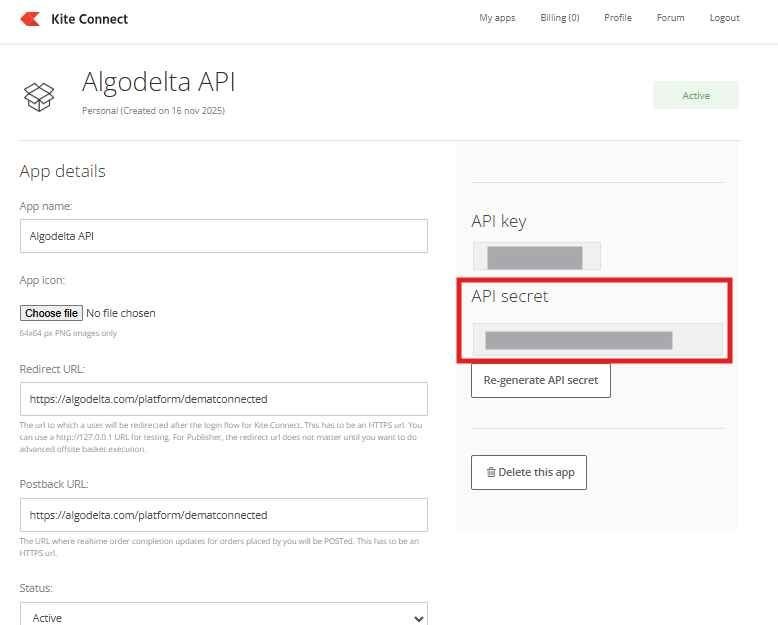
When you click on the “Show API Secret” button, your Zerodha API Secret Key will become visible for further integration and setup.
For adding a Static IP in Zerodha
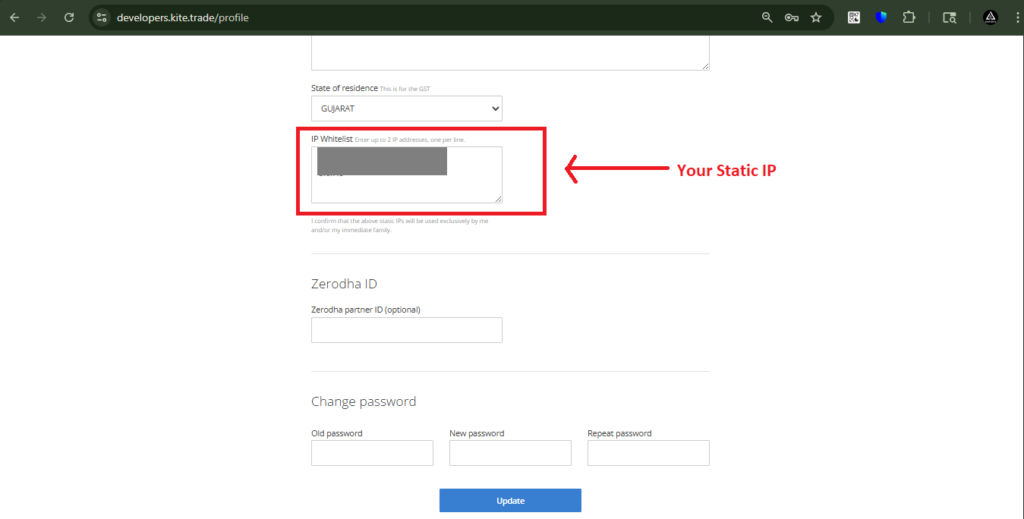
To add a Static IP in Zerodha, click on the ‘Profile’ tab.
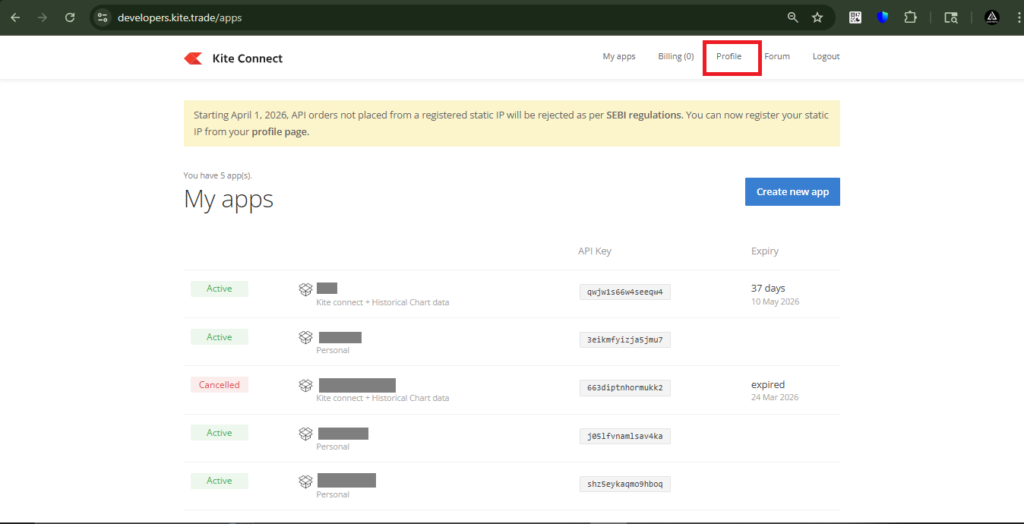
Then, in the ‘IP Whitelist’ section, enter the Static IP obtained from AlgoDelta.
Then, click on the ‘Update’ button.
Step 3: For getting Static IP
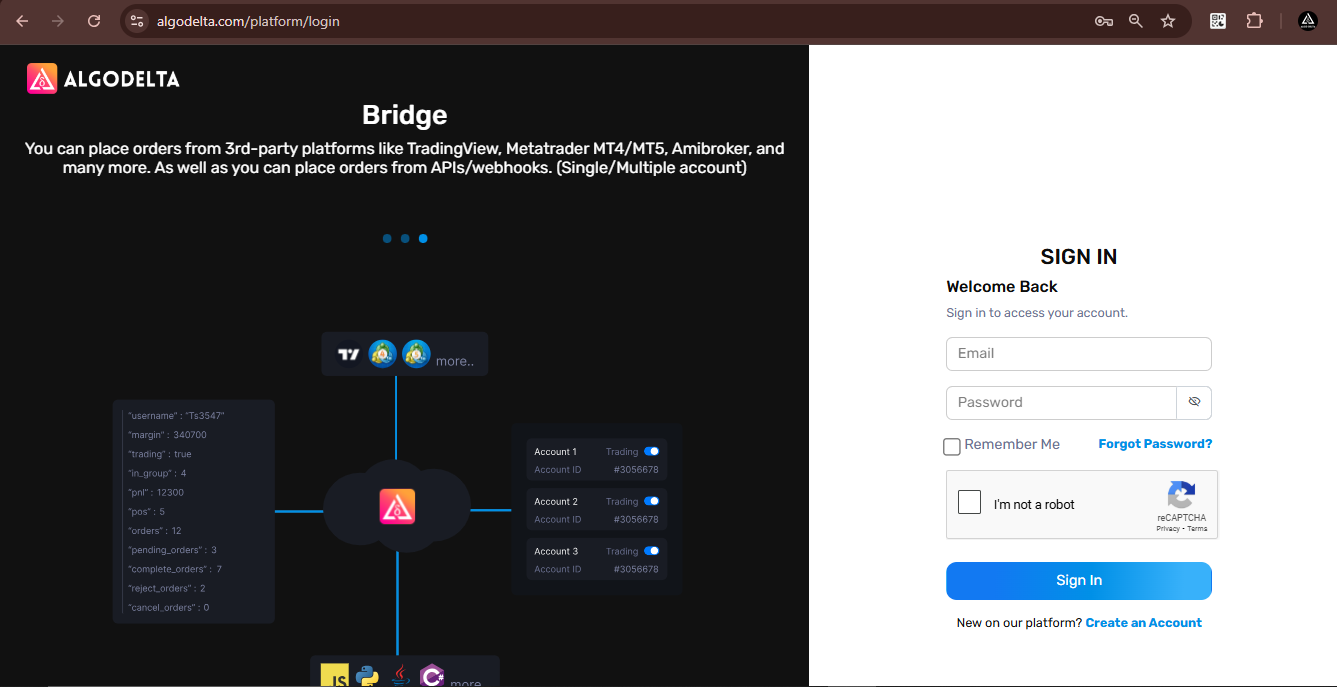
Now, go to AlgoDelta’s Copy Trading using the following link: https://algodelta.com/platform/login. Enter your AlgoDelta email ID and password.
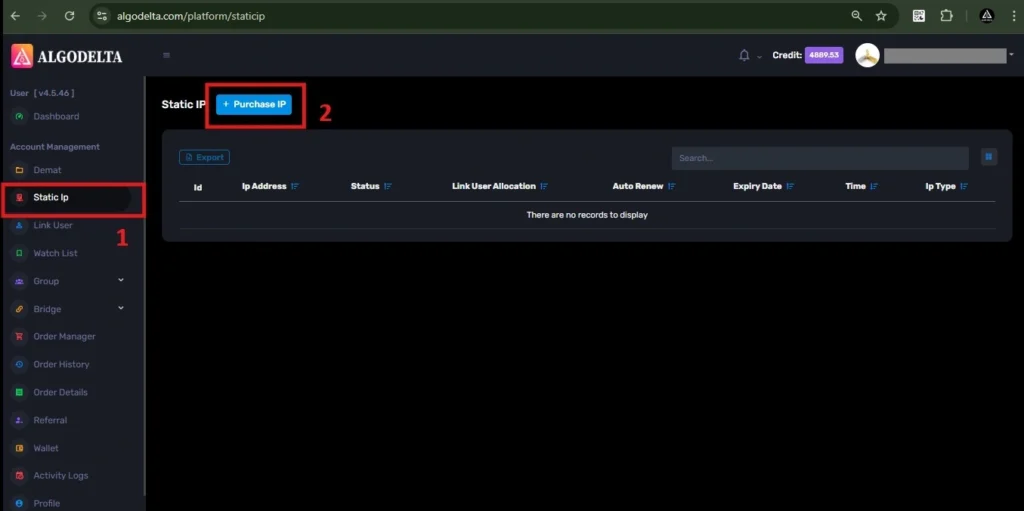
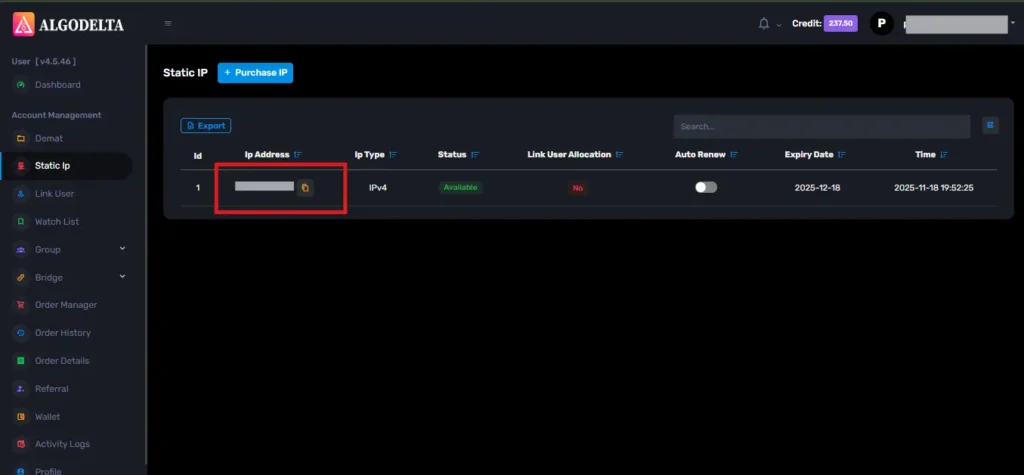
To get your Static IP, log in to your AlgoDelta account and navigate to the “Static IP” tab. Click on the “Purchase IP” button to continue.
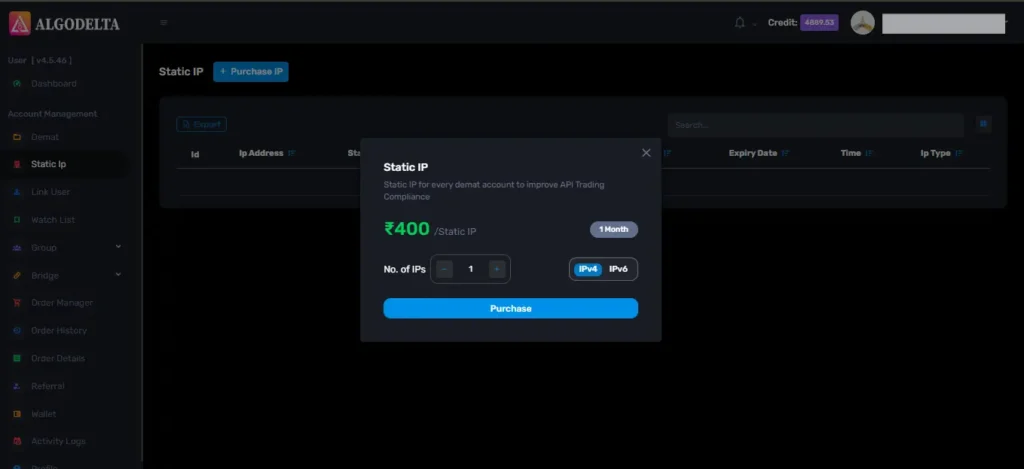
Next, select IPv4 , click on the Purchase button, and wait a few seconds for the Static IP to be activated.
Once the process is complete, you will be able to view your Static IP, which is required for connecting Zerodha with AlgoDelta for secure copy trading.
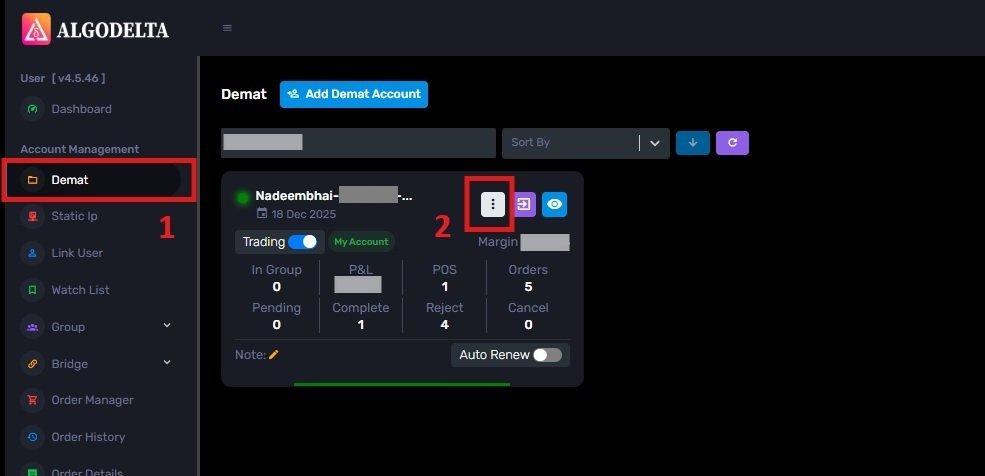
To bind the Static IP with your Zerodha account, go to the Demat tab and click on the three-dot menu. Select the Reconnect option.
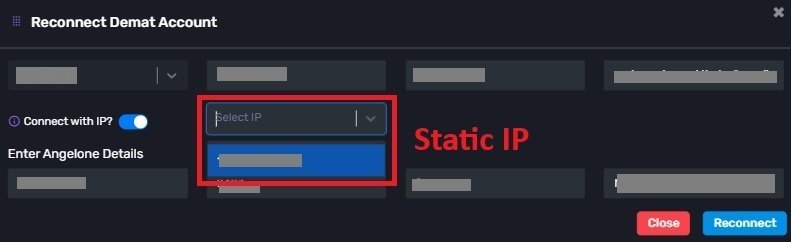
Next, enable the “Connect with IP” setting and choose the Static IP that you purchased and linked for Zerodha copy trading.
Then, click on the dropdown menu to view and select your Static IP for Zerodha copy trading integration.
Enter the following details: Nickname, Mobile Number, Email, Zerodha ID, Zerodha API Key, and API Secret (generated from the Zerodha portal). Click ‘Add.’ You will then see another tab to log in to Zerodha.
Step 7:
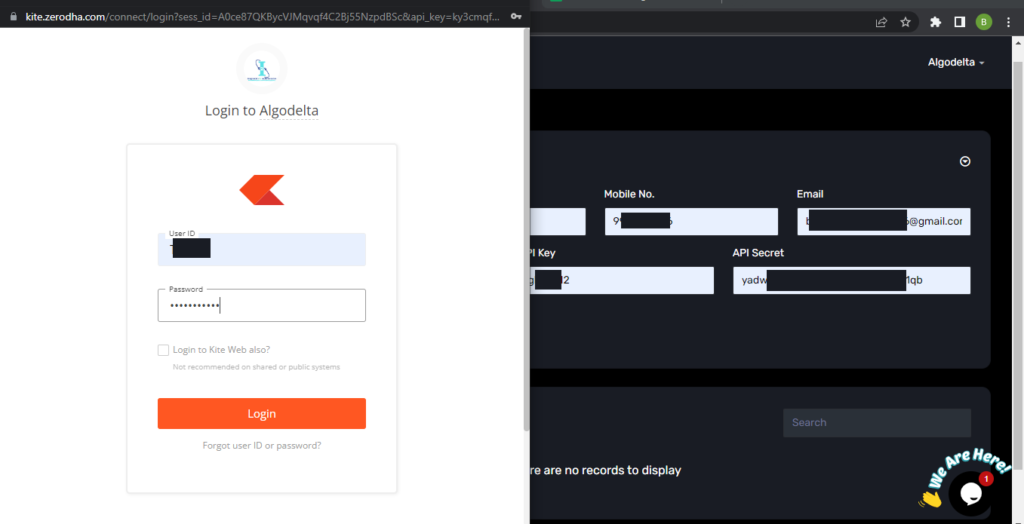
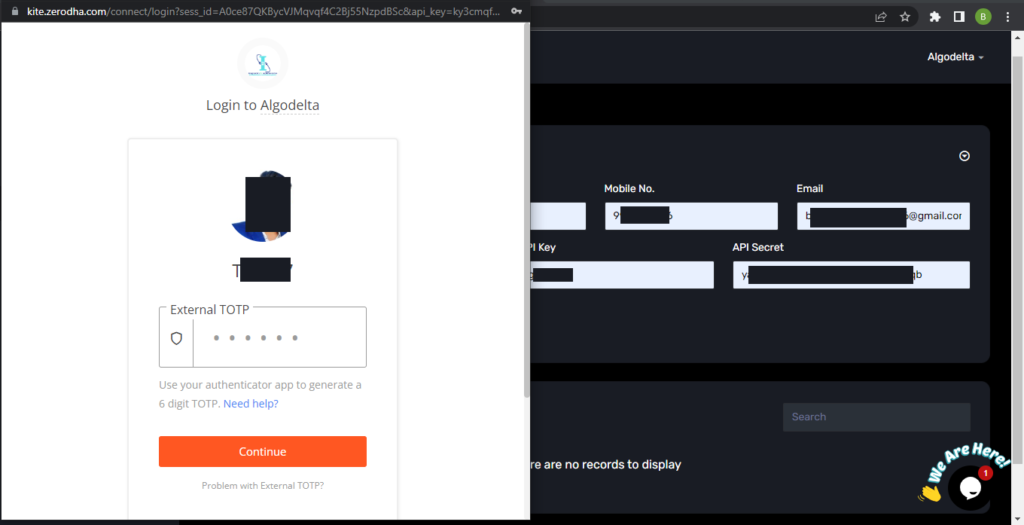
You will have to enter Zerodha user id and password then click on Login. Now you have to enter TOTP Which you get from your authenticator app which you have added in above steps. after entering TOTP click on Continue. You will see a “Broker Connected” pop-up.
Conclusion:
By following these steps, you will successfully connect your Zerodha account to AlgoDelta’s Copy Trading software and gain access to its features for enhanced trading experiences.

Written by
The AlgoDelta support team writes setup guides for copy trading, broker API connections and TradingView automation, based on thousands of real customer setups.