Copy Trading With Zerodha
Start copy trading with Zerodha in just 3 easy steps using AlgoDelta. Connect your account, automate your trades, and simplify your trading workflow.

Table of contents
Introduction:
To connect Zerodha in AlgoDelta’s Copy Trading software, follow these steps:
1. Enable TOTP from Kite Zerodha Portal.
2. Add Zerodha Account Details in Algodelta’s Copy Trading
Step 1:
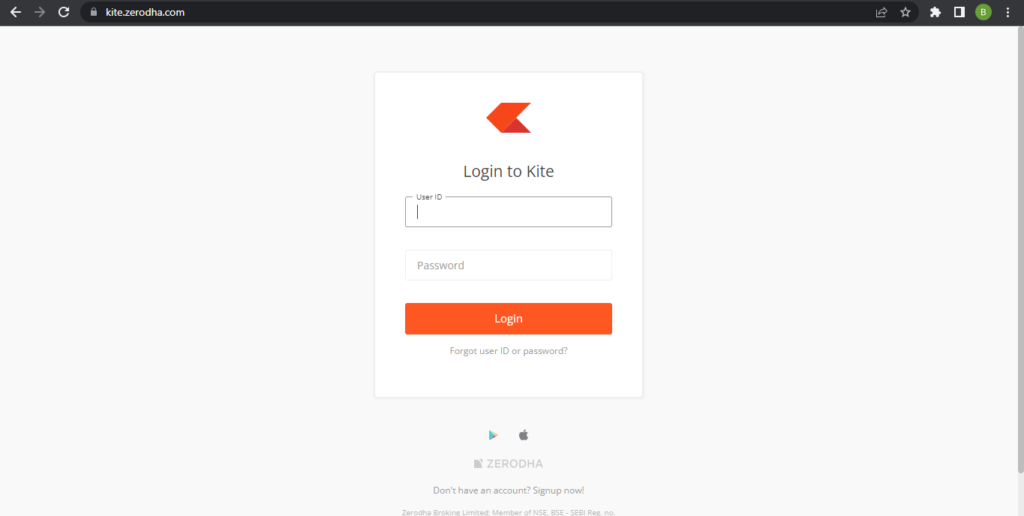
Open the Kite Zerodha website using the following link: https://kite.zerodha.com/
1. Enter User ID and Password then Click on Login.
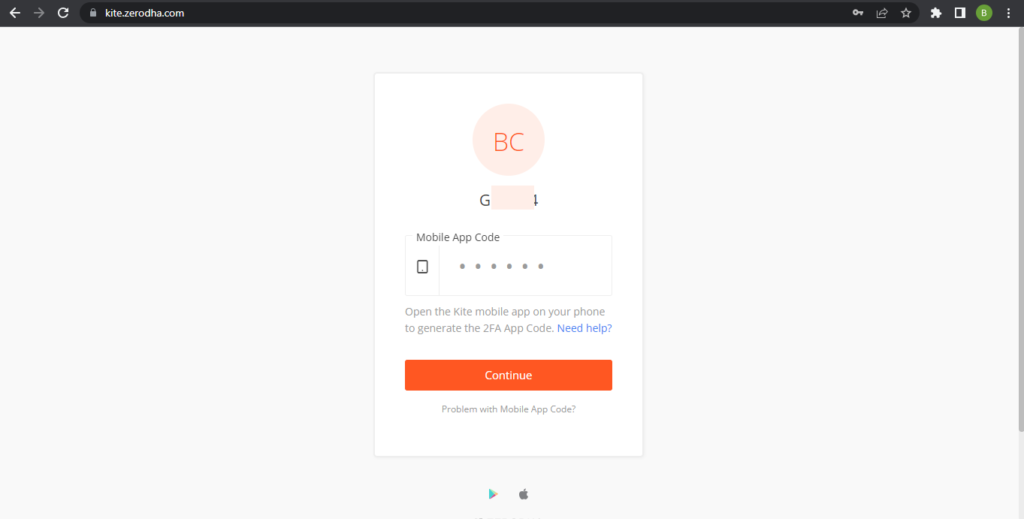
2. Enter Mobile App Code which you will get from Zerodha mobile app to login into Portal. If you are not using mobile app You can generate OTP to login click on “Problem with Mobile App Code”. it will given option to send otp on your register Mobile number or Email id.
Step 2:
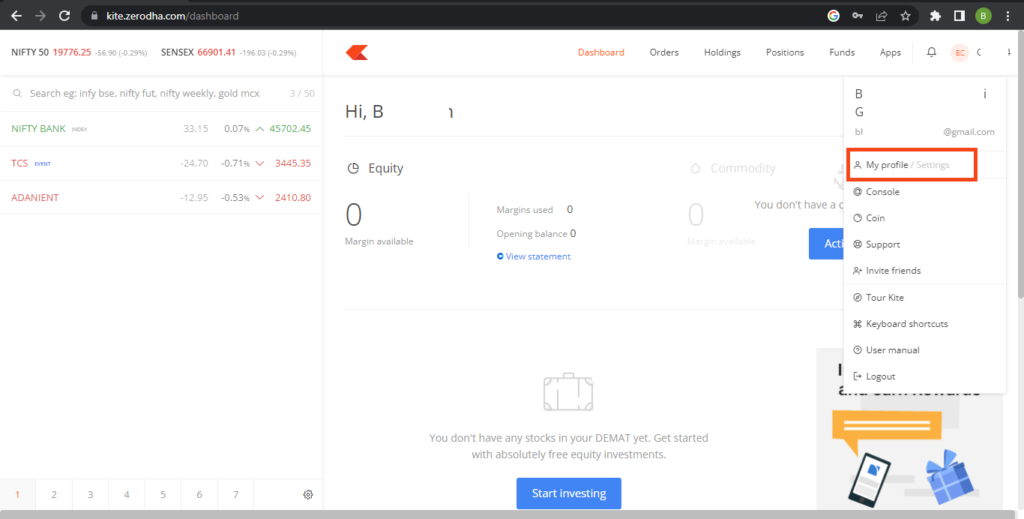
Once You Logged In Click on Your “User ID” which is right side of portal. You will See “My profile” Option.
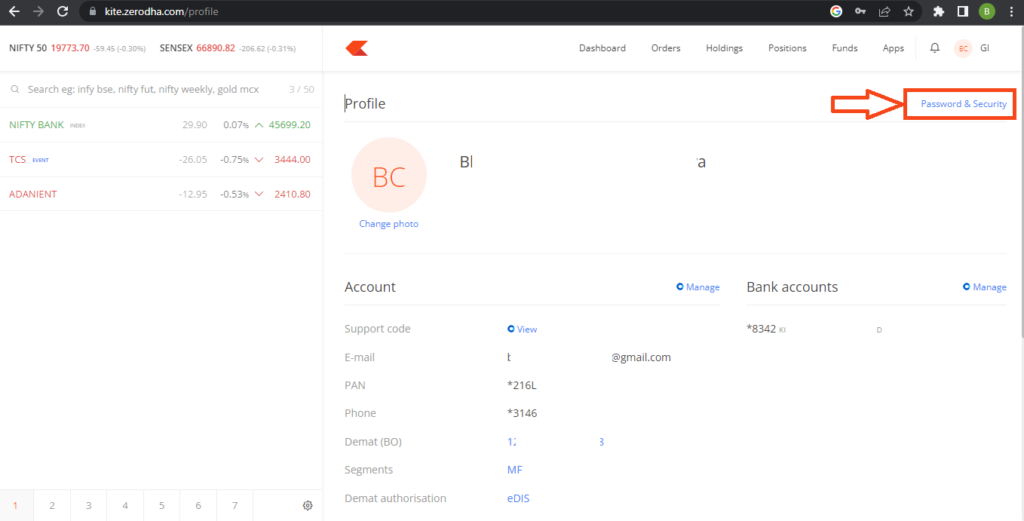
Click on “My profile”. You will See Below Screen
Top right corner You will see “Password & Security” Option.
Step 3:
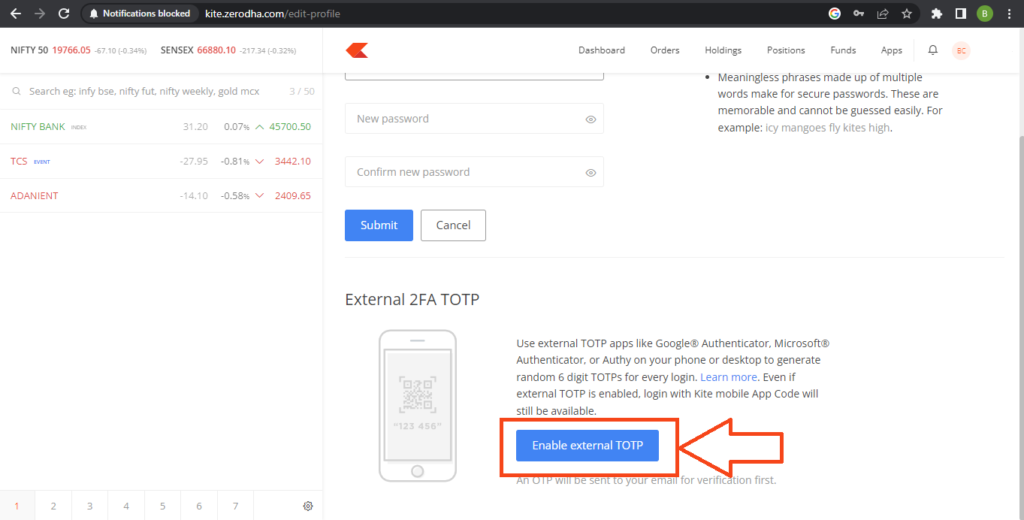
After Click on “Password & Security”. You will se below screen
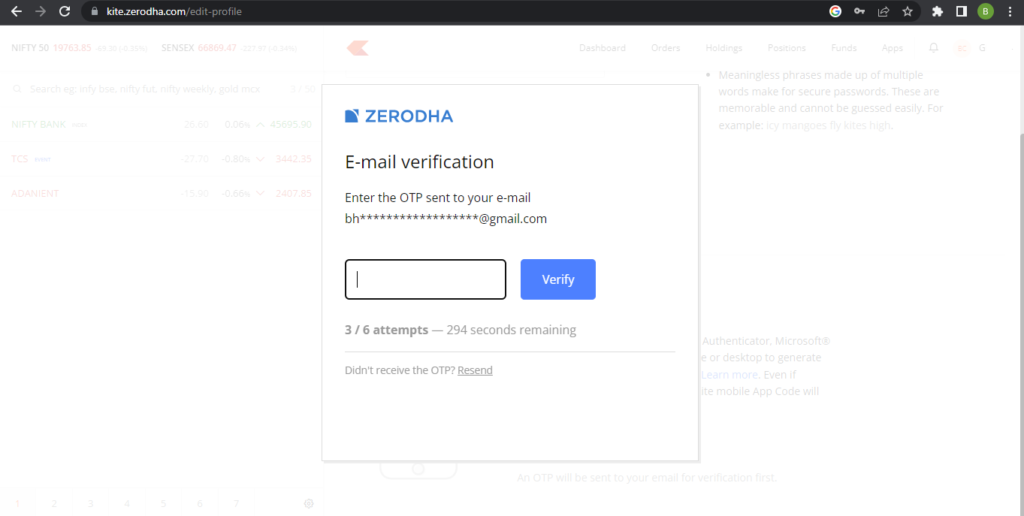
Click on “Enable external TOTP”. It will trigger OTP on your registered email Id . You have to enter that OTP and verify that OTP.
Step 4:
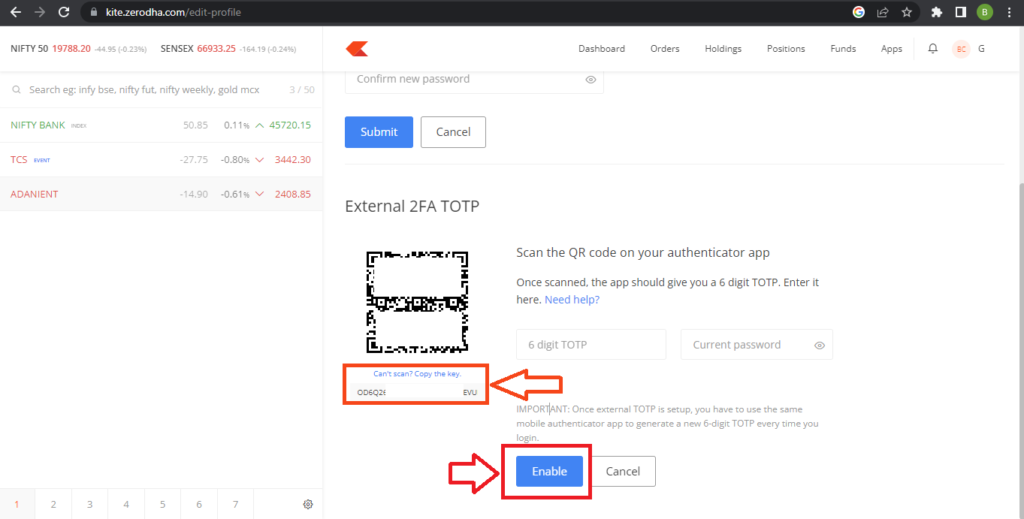
Once you verify OTP you will see a QR code displayed on the screen.
For Android User Download Google Authenticator app From PlayStore using this link : GOOGLE AUTHENTICATOR
For Apple User you can download from AppStore using this link: GOOGLE AUTHENTICATOR
Launch the authenticator app on your mobile device and select the option to scan a QR code. Use your device’s camera to scan the QR code displayed on the Kite Zerodha platform.
Once you have scanned the QR code, the authenticator app will automatically recognize and add the Zerodha account to your app. It will start generating unique passcodes. Additionally, you will also be provided with a backup key, Click on “Can’t scan? Copy the key” it will automatically copy TOTP key and save key to enter into Algodelta’s copy trading.
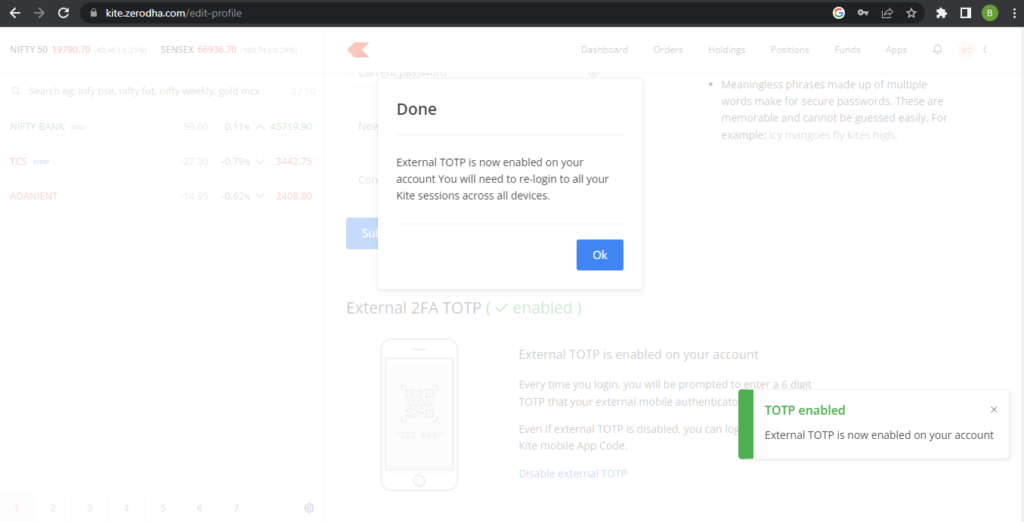
Now Enter TOTP which is generated by Authenticator app and enter you password then Click on “Enable”. You will see TOTP enabled popup.
Step 5:
Now, go to AlgoDelta’s Copy Trading using the following link:
https://algodelta.com/platform/login. Enter your AlgoDelta email ID and password.
Step 6:
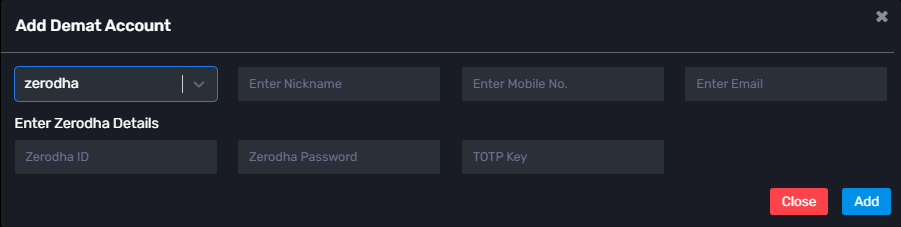
Go to the “Demat” tab and click on “Add Demat Account.” Select “zerodha” as the broker and provide the following details: Nickname, Mobile Number, Email, Zerodha ID, Zerodha Password, TOTP Key (generated from the Zerodha portal). Click on “Add.” You will see a “Broker Connected” pop-up.
Conclusion:
By following these steps, you will successfully connect your Zerodha account to AlgoDelta’s Copy Trading software and gain access to its features for enhanced trading experiences.

Written by
The AlgoDelta support team writes setup guides for copy trading, broker API connections and TradingView automation, based on thousands of real customer setups.