
Do you experience a 15-minute delay on TradingView and struggle to analyze charts in real time?
Here’s a step-by-step method to fix TradingView’s delayed chart data and improve your analysis.
Step 1 :
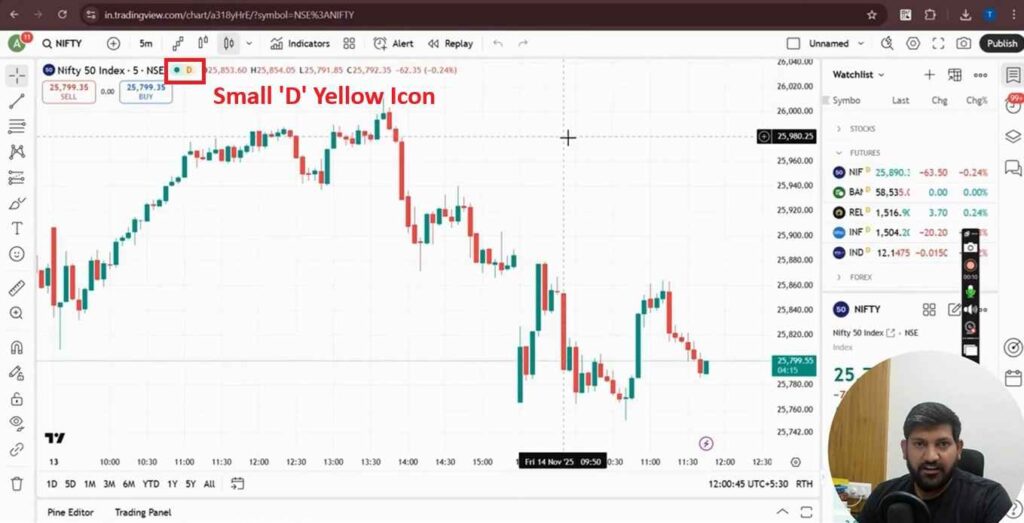
First, open any NSE script on TradingView, such as NIFTY or any NSE-listed stock.
Then, select the small yellow ‘D’ icon on your TradingView chart to fix delayed data issues.
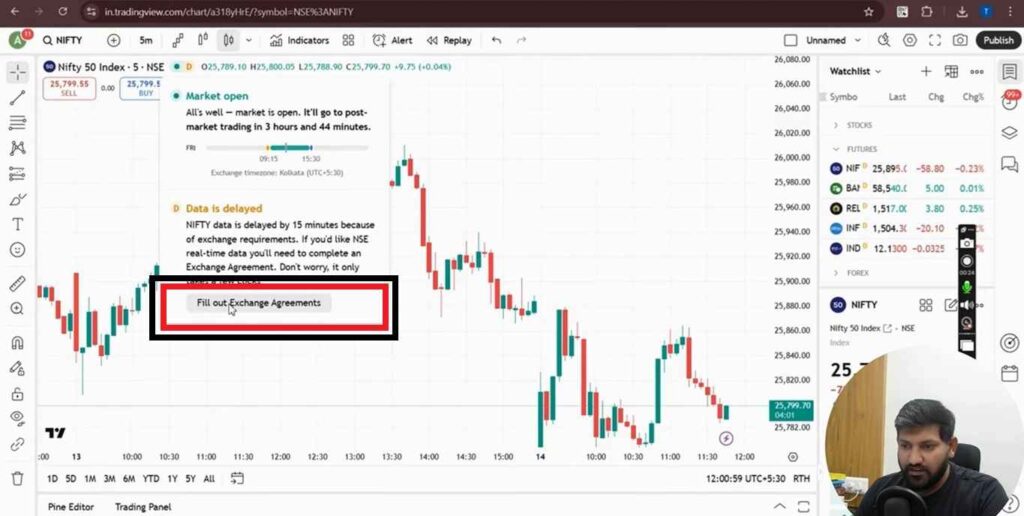
Next, select the ‘Fill Out Exchange Agreement’ button on TradingView to activate your exchange data and remove chart delays.
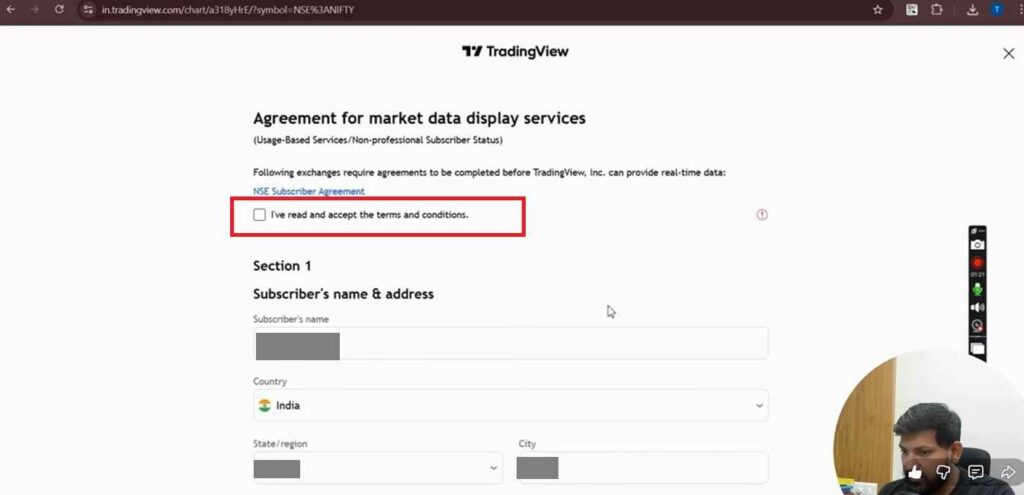
Next, you must check the ‘I’ve read and accept the Terms and Conditions’ box to continue enabling real-time data on TradingView.
Step 2 :
Next, TradingView will display two parts — Section 1 and Section 2 — where you need to complete the required details.
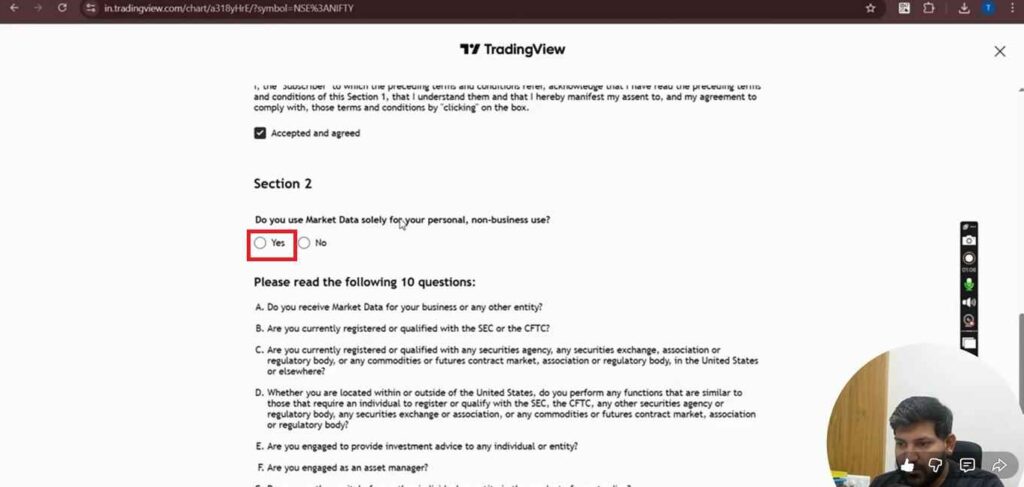
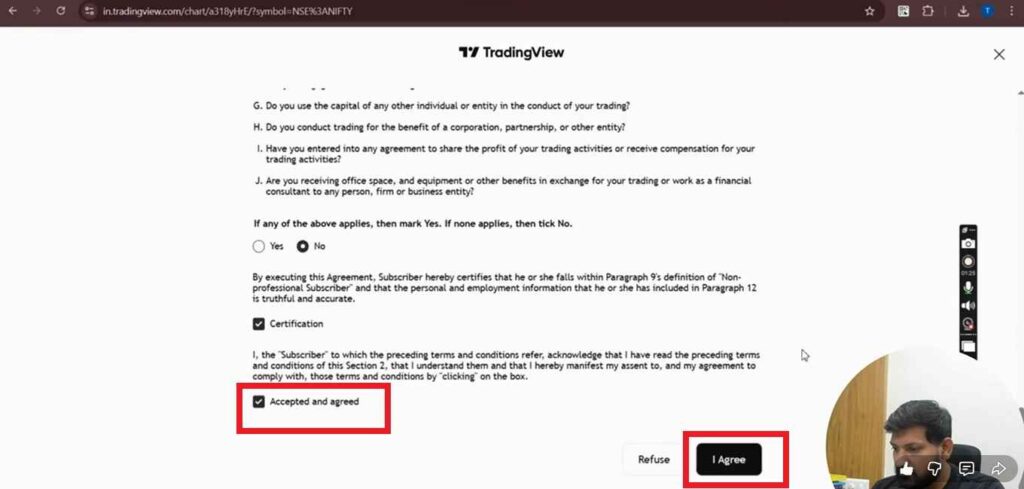
Enable real-time TradingView data by selecting the option ‘Do you use Market Data solely for your personal, non-business use?’, ticking the relevant checkboxes, choosing ‘Accept and Agree,’ and finally clicking the ‘I Agree’ button to remove chart delays instantly.
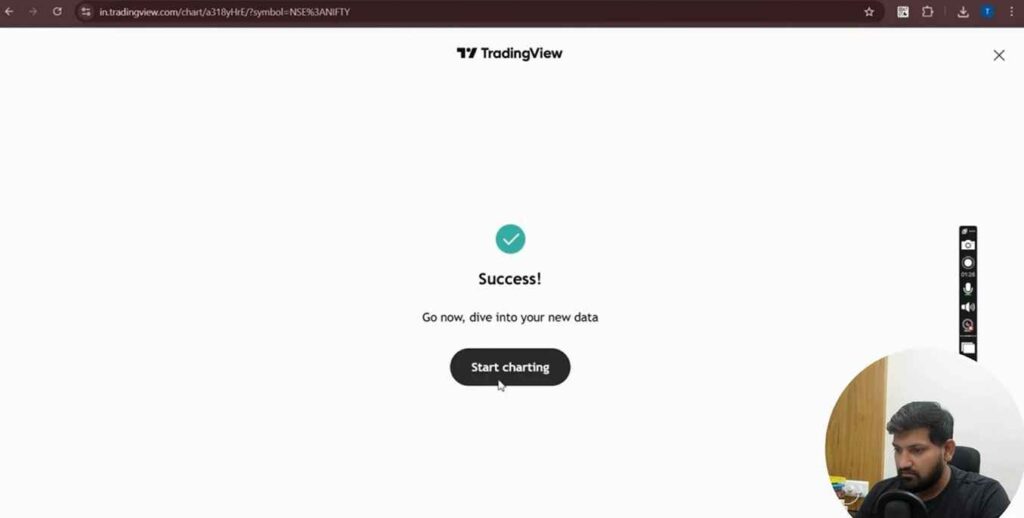
After completing all these steps, your TradingView candle delay issue will be fully resolved, ensuring real-time and accurate chart updates.
Don’t like reading? This simple video explains how to remove TradingView’s delayed data and get real-time candles: https://www.youtube.com/watch?v=68MHZ02_SkA
Have questions about TradingView or automation tools? Reach out at 95376 74727 — we’re happy to help.