


Introduction:
To connect Groww in AlgoDelta’s Copy Trading software, follow these steps:
- Generate API Token from Groww Portal.
- Add Groww account details in Algodelta’s Copy Trading.
Step 1:
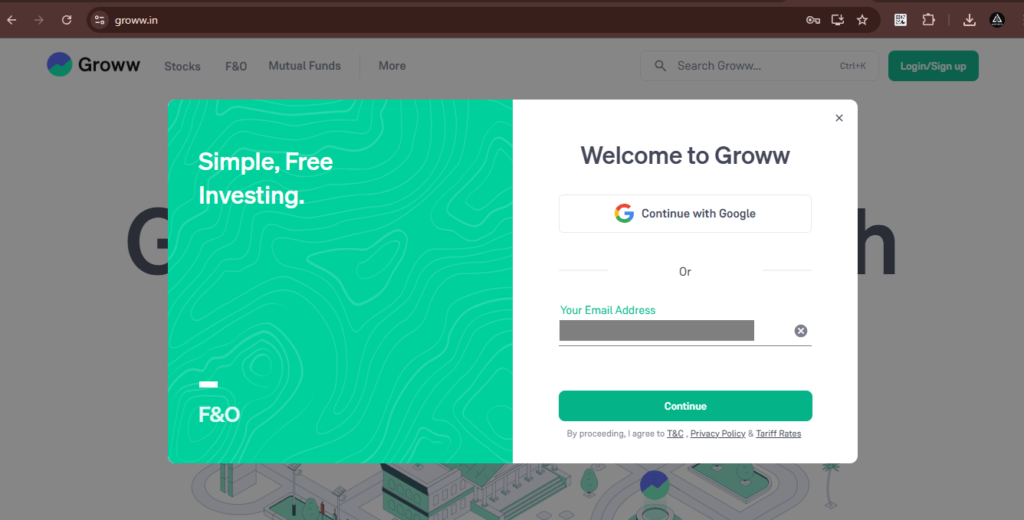
- Log In to Your Groww Trading Account at https://groww.in/ .
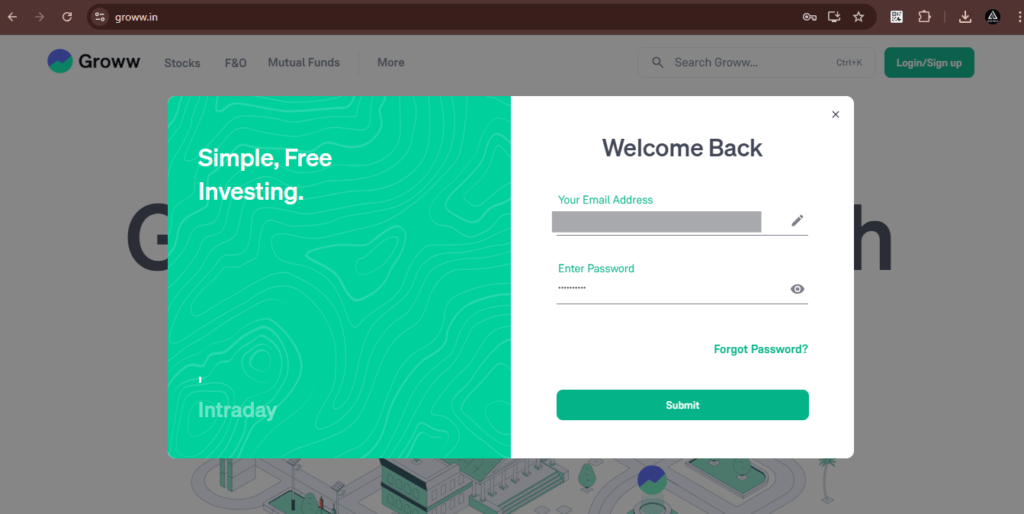
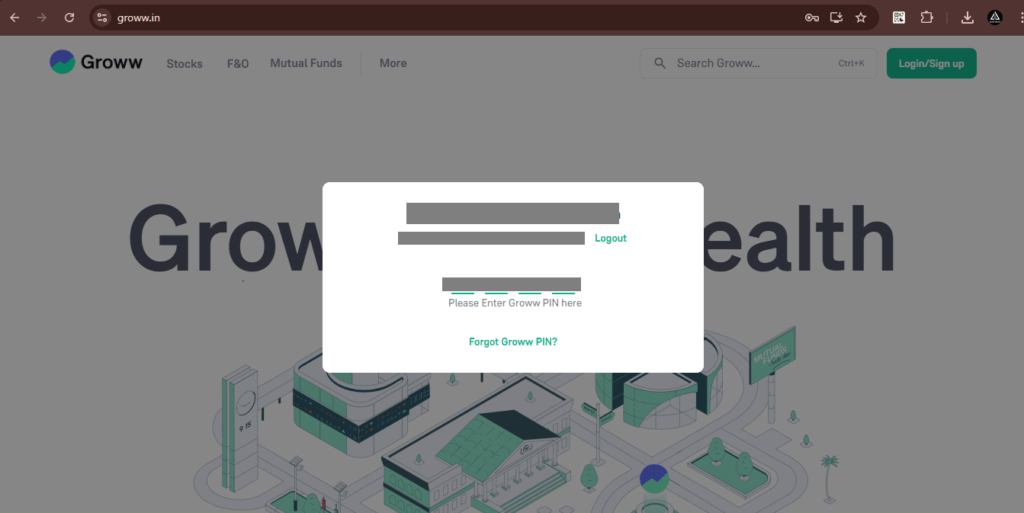
- Enter Your Groww register email and Password, Click submit, and then enter pin
Step 2 :
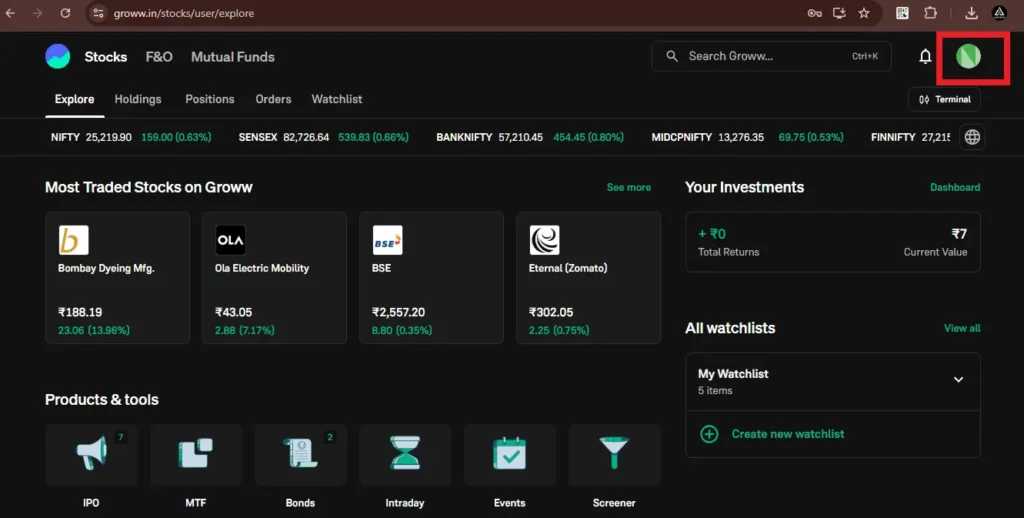
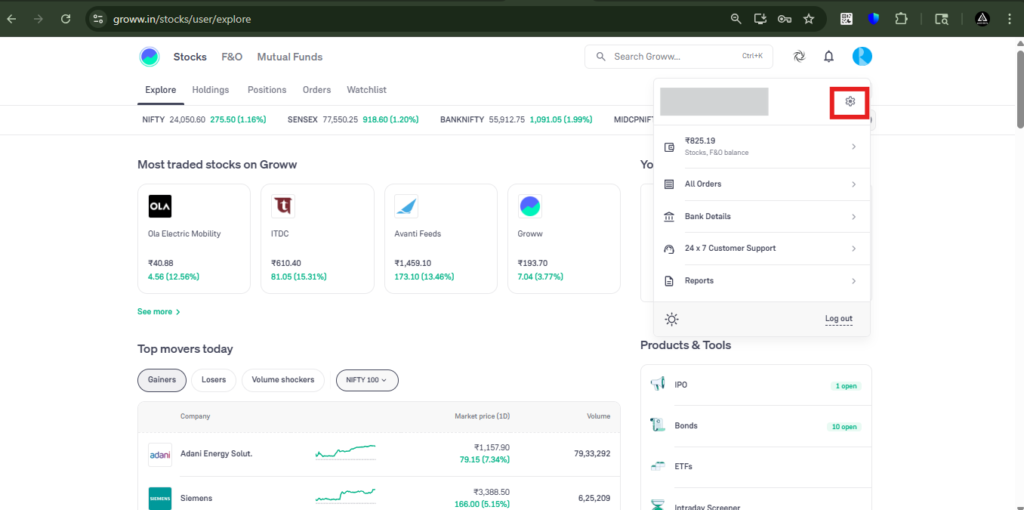
- Then, click on the profile icon, and select the settings icon.
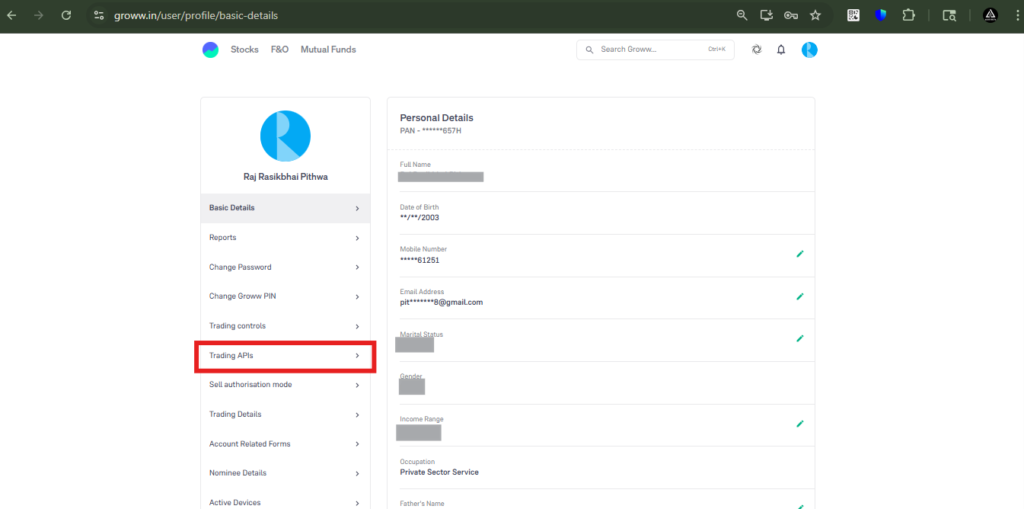
Now, click on the ‘Trading APIs’ tab.
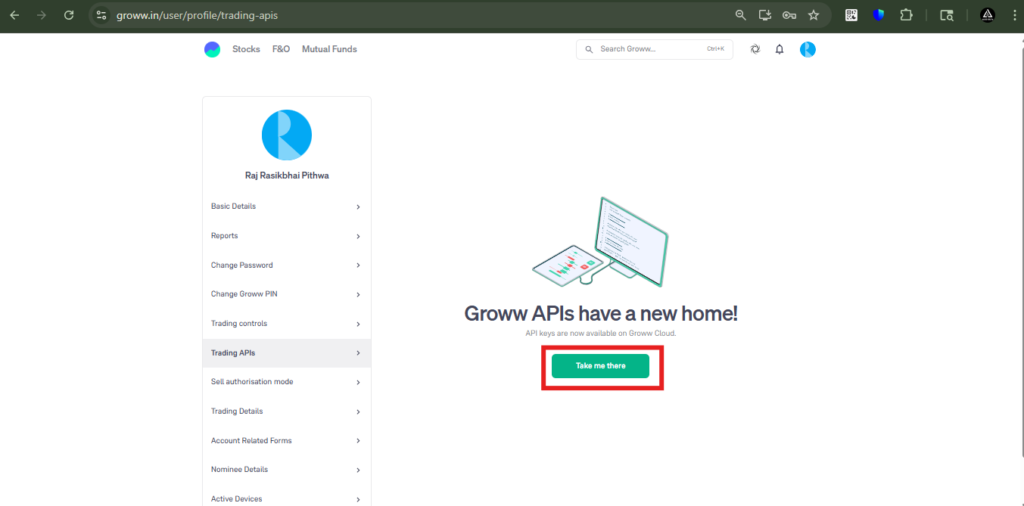
Then, click on the ‘Take Me There’ button.
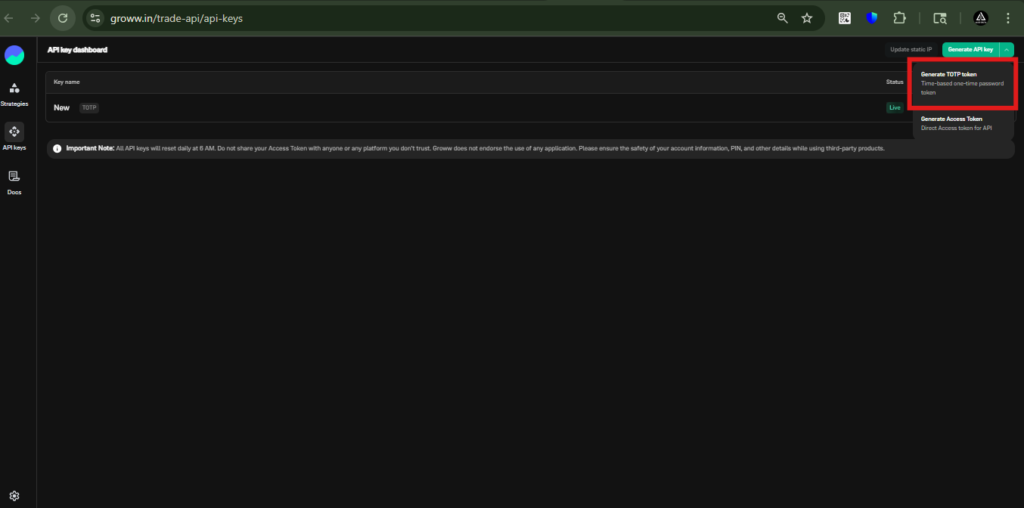
Then, you will be redirected to another page. Click on the green button at the top right.
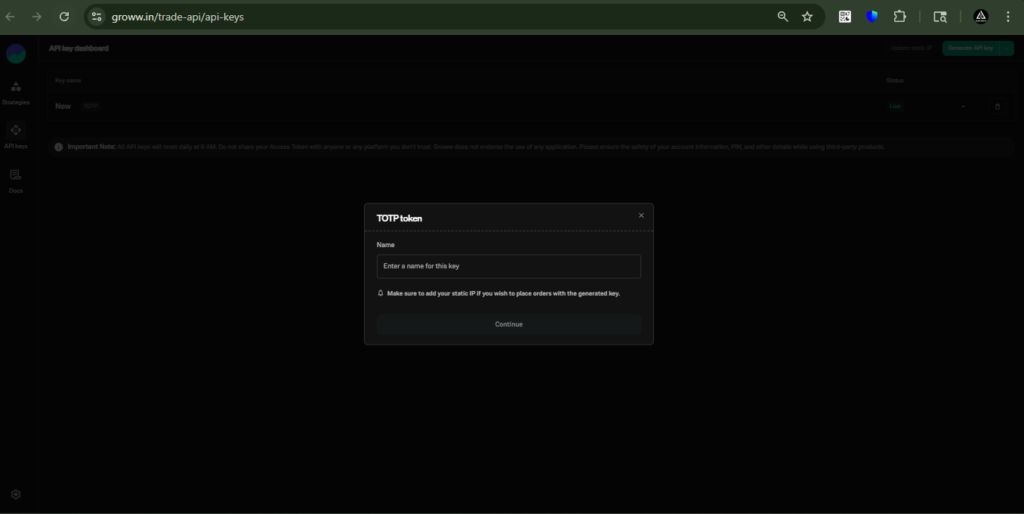
From here, click on the ‘Generate TOTP Token’ option.
Then, enter any name for the TOTP token.
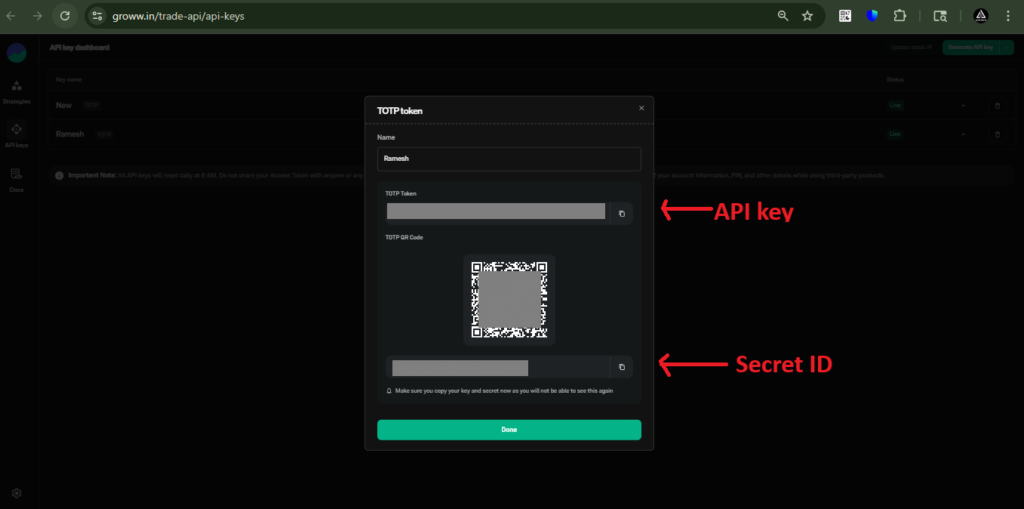
Then, you will be able to see the API Key and Secret ID.
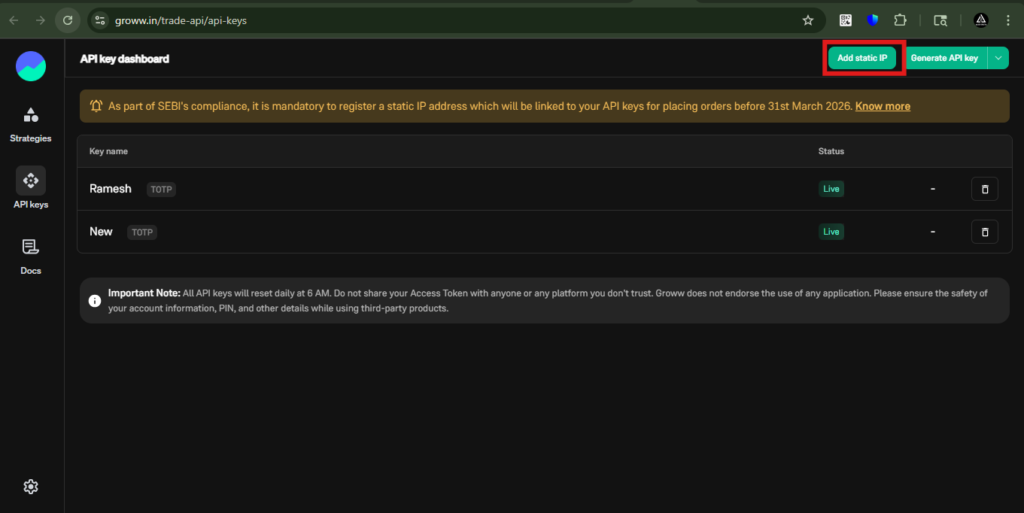
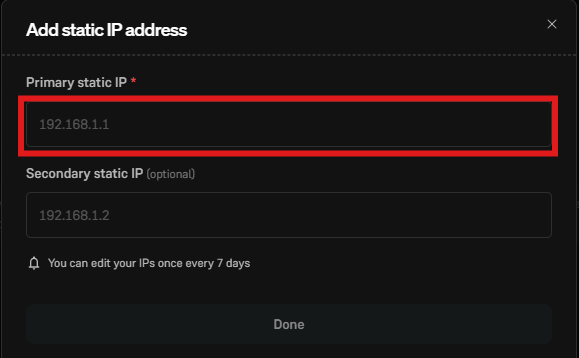
To add a Static IP, click on the ‘Add Static IP’ tab, then enter the Static IP obtained from AlgoDelta in the ‘Primary Static IP’ field. Then, click on the ‘Done’ button.
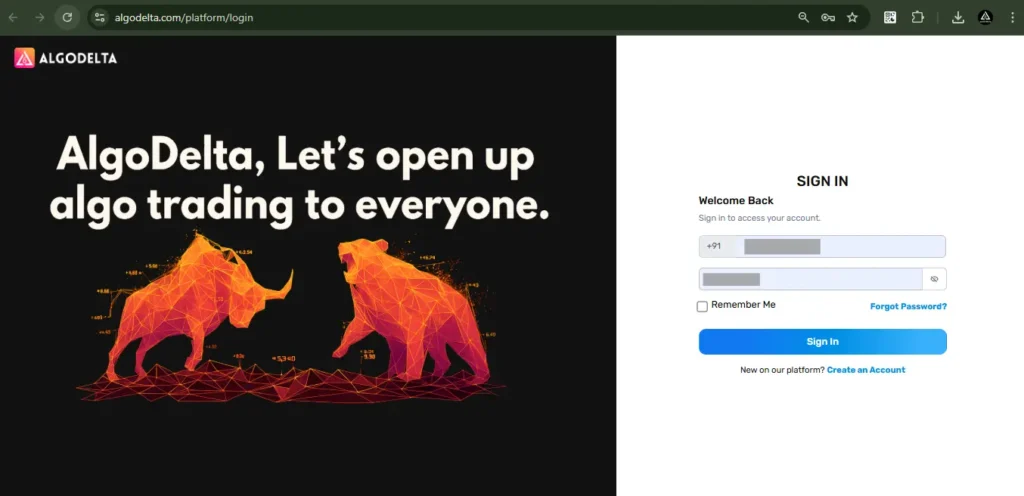
Now, go to AlgoDelta’s Copy Trading using the following link: https://algodelta.com/platform/login. Enter your AlgoDelta email ID and password.
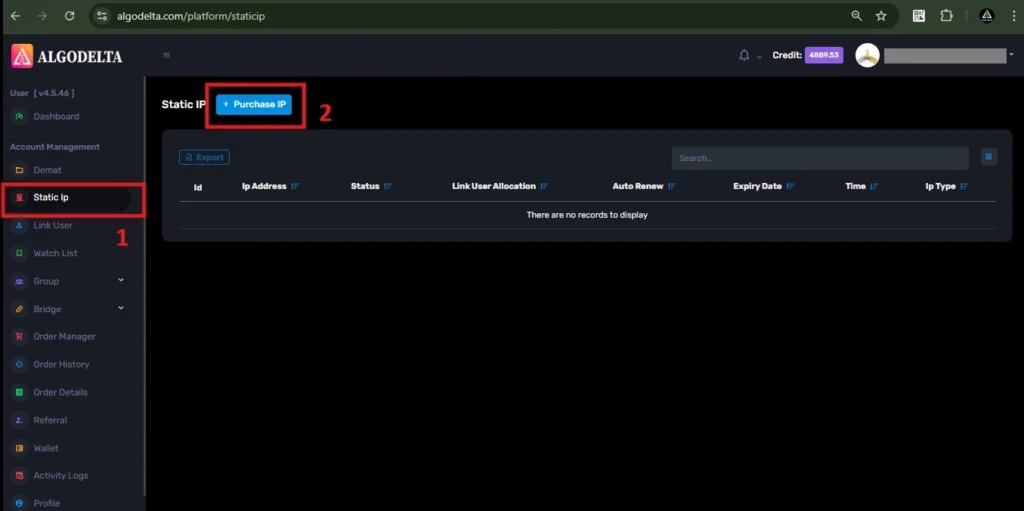
To get your Static IP, log in to your AlgoDelta account and navigate to the “Static IP” tab. Click on the “Purchase IP” button to continue.
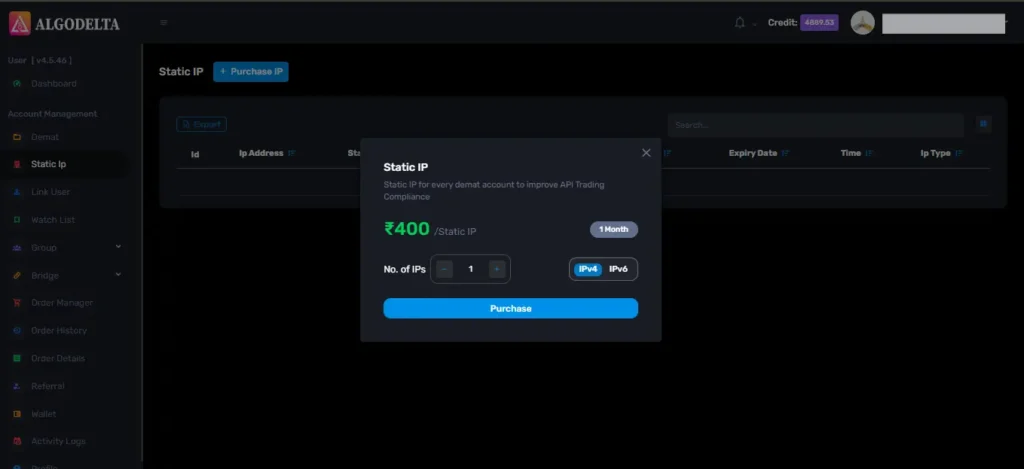
Next, select IPv4 , click on the Purchase button, and wait a few seconds for the Static IP to be activated.
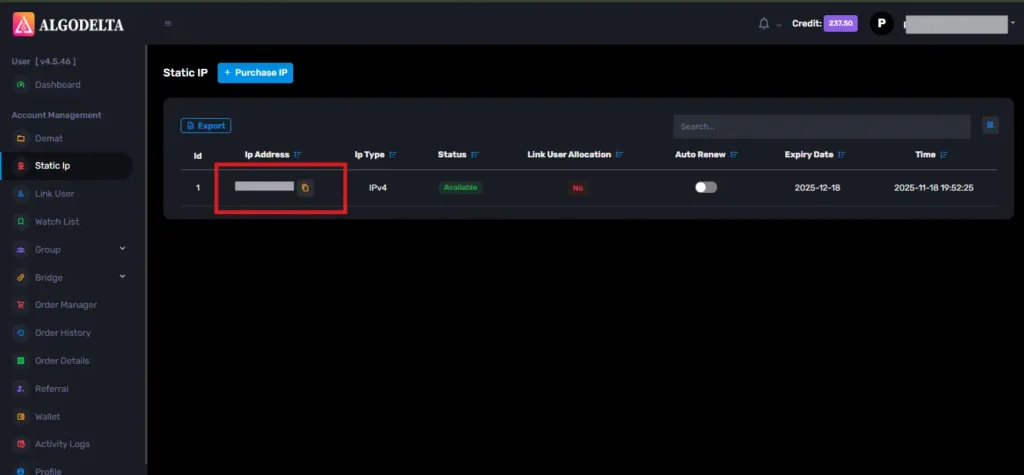
Once the process is complete, you will be able to view your Static IP, which is required for connecting Groww with AlgoDelta for secure copy trading.
To bind the Static IP with your Groww account, go to the Demat tab and click on the three-dot menu. Select the Reconnect option.
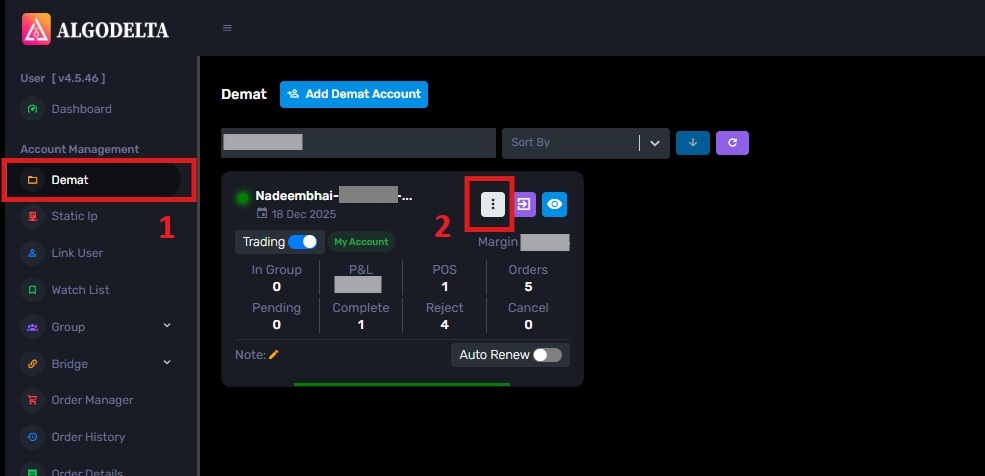
Next, enable the “Connect with IP” setting and choose the Static IP that you purchased and linked for Groww copy trading.
Then, click on the dropdown menu to view and select your Static IP for Groww copy trading integration.
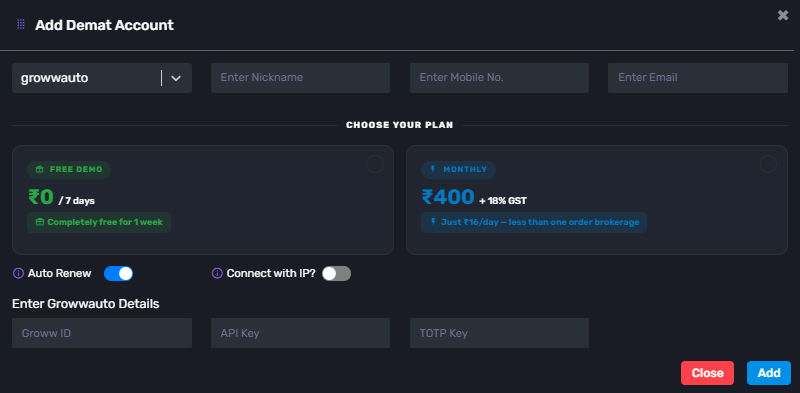
Select ‘Groww’ as your broker and enter the required details: Nickname, Mobile Number, Email, Groww ID (registered email), API Key, and TOTP (generated from the Groww portal). Click ‘Add.’ A ‘Broker Connected’ pop-up will appear, confirming a successful connection.