To connect Asthatrade(Rupeezy) in AlgoDelta’s Copy Trading software, follow these steps:
1. Enable TOTP from the Asthatrade(Rupeezy) MobileApp.
2. GenerateAPI Key from vortex Asthatrade(Rupeezy) portal.
3. Add Asthatrade Account Details in Asthatrade(Rupeezy)’s Copy Trading
Step 1:
If you don’t have the Astha Trade app, please download the Asthatrade(Rupeezy) Flow Mobile Application from the Play Store or the App Store using the links below:
Once you have installed the app, open it, add your User ID and Password, and click on ‘Sign In.’ You will receive an OTP on your mobile number. Enter the OTP and click on ‘Verify.’
Step 2:
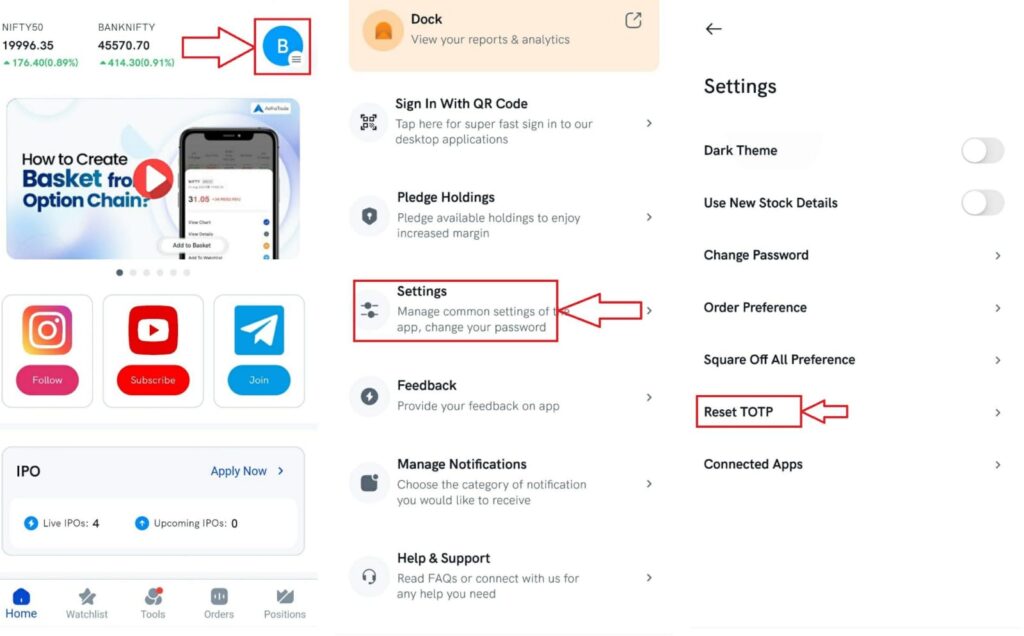
On the Home screen, locate and click the Profile icon located at the top right corner.
After clicking on the Profile icon, you will be able to see the ‘Settings’ option. Click on ‘Settings.’
In the settings menu, you will find the ‘RESET TOTP’ option. Click on that.
Step 3:
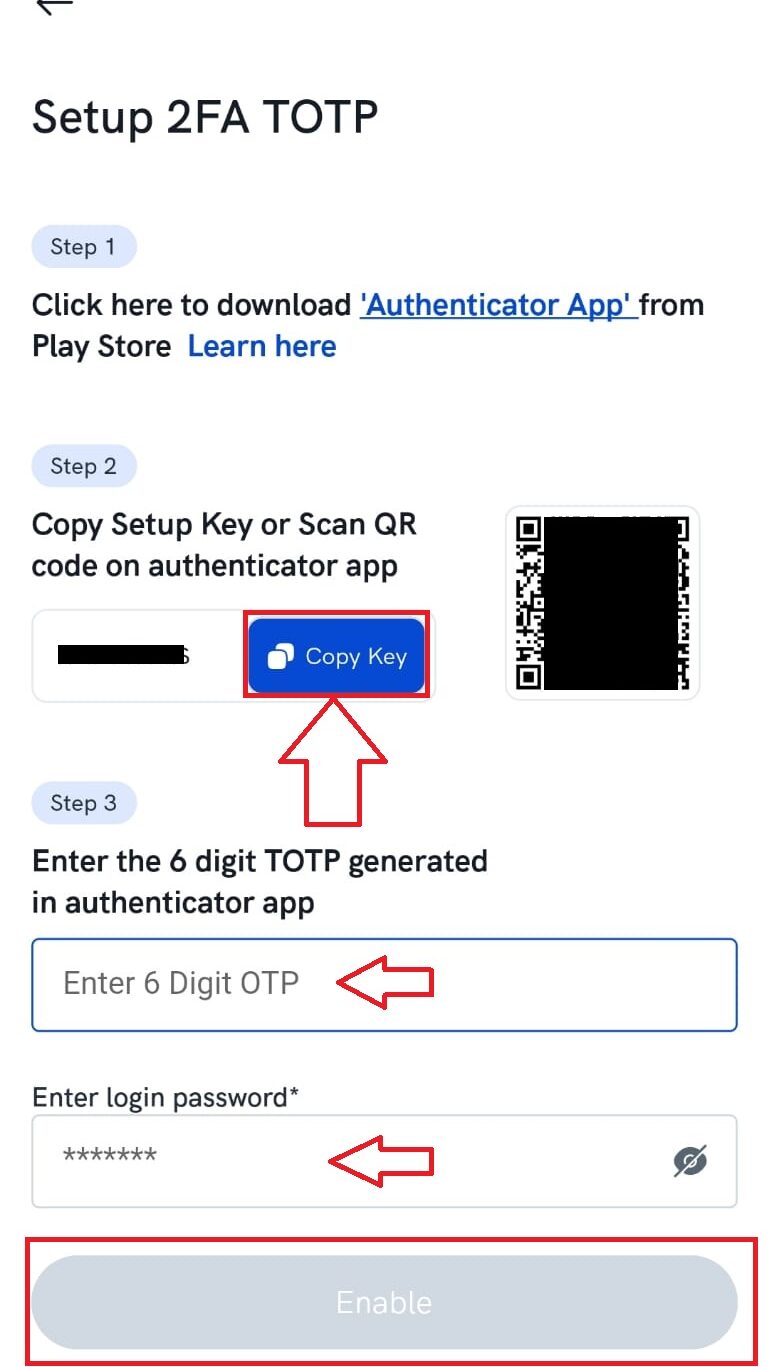
You will see the QR Code and ‘Copy Key’ copy the TOTP key and save the key to enter into Algodelta’s copy trading.
For Android Users Download the Google Authenticator app From PlayStore using this link: GOOGLE AUTHENTICATOR
For Apple Users you can download it from AppStore using this link: GOOGLE AUTHENTICATOR
Go to the Authenticator app on your phone, click on add account (+ sign in the bottom right of the Google Authenticator)
scan the QR code shown on the Flow screen or
enter the setup key, present on the flow screen, in the authenticator app
Your Astha account will be added and the 6-digit TOTP will now be visible which changes every 30 seconds. Enter this TOTP in the Astha mobile app or web to log into the Astha account
Step 4:
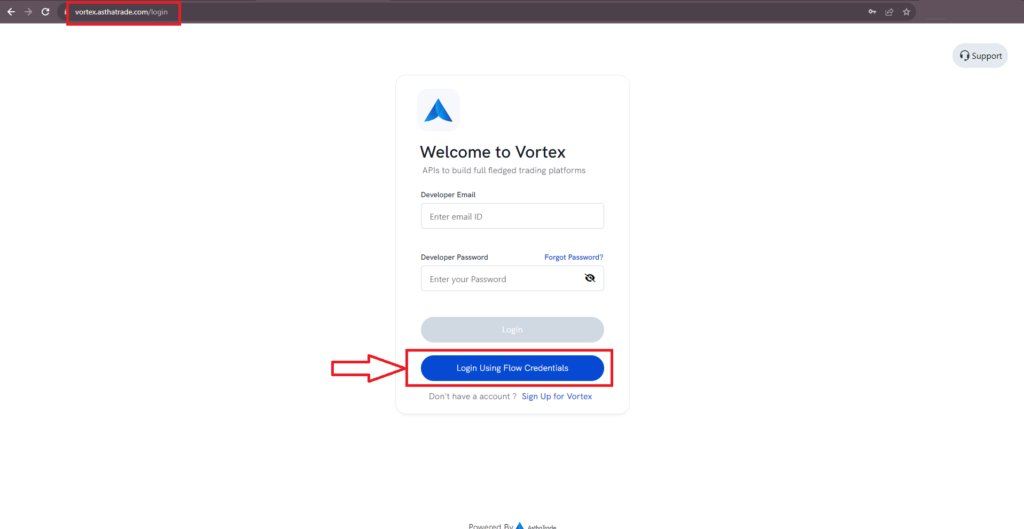
After enabling TOTP follow the below steps to generate API.
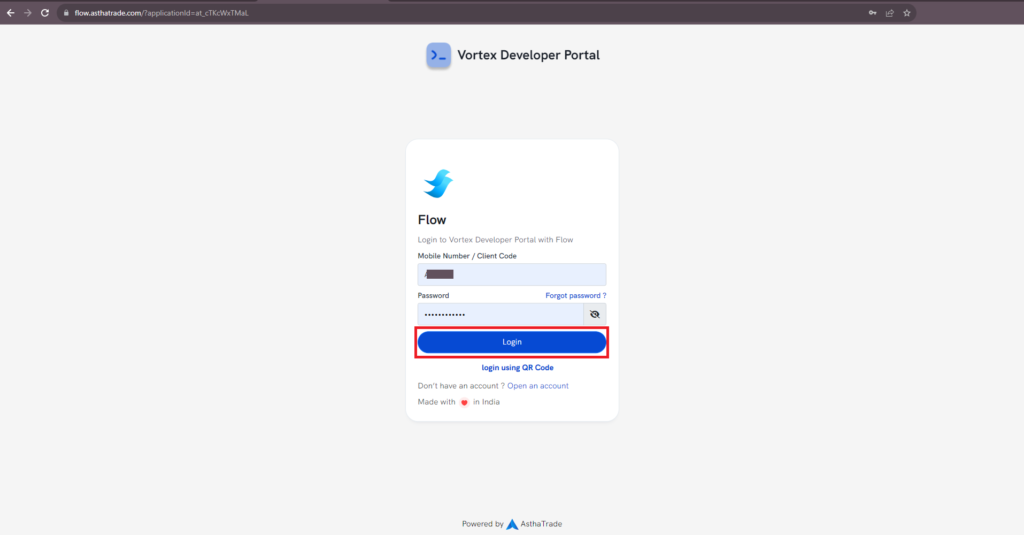
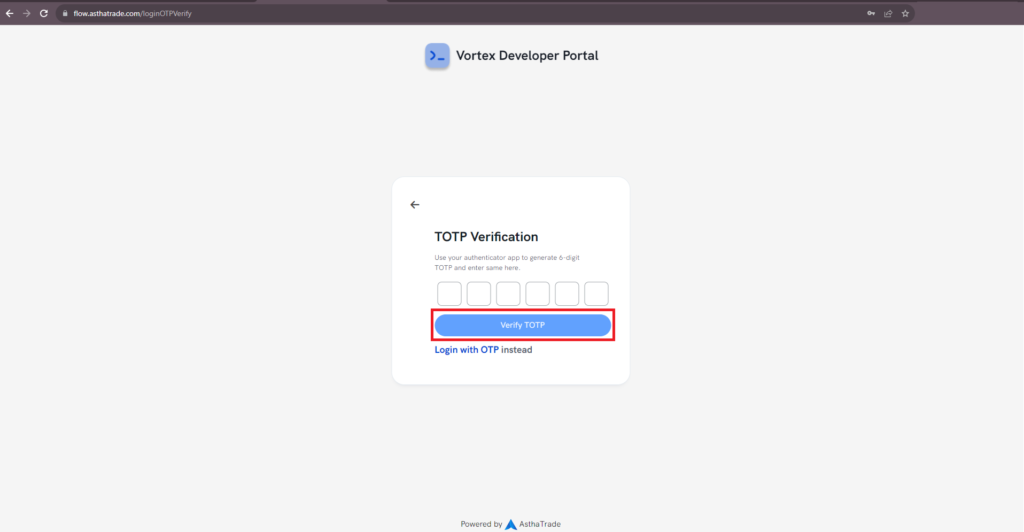
Now enter your User ID and Password and click on ‘Login.’
You will see the entered TOTP filed. Enter TOTP which you will get from the authenticator app and click on ‘Verify TOTP.’
Step 5:
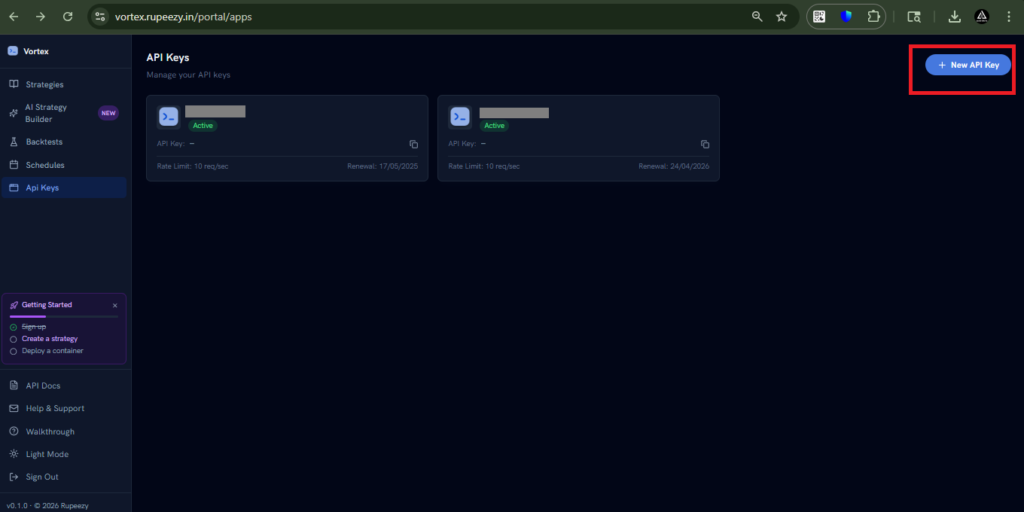
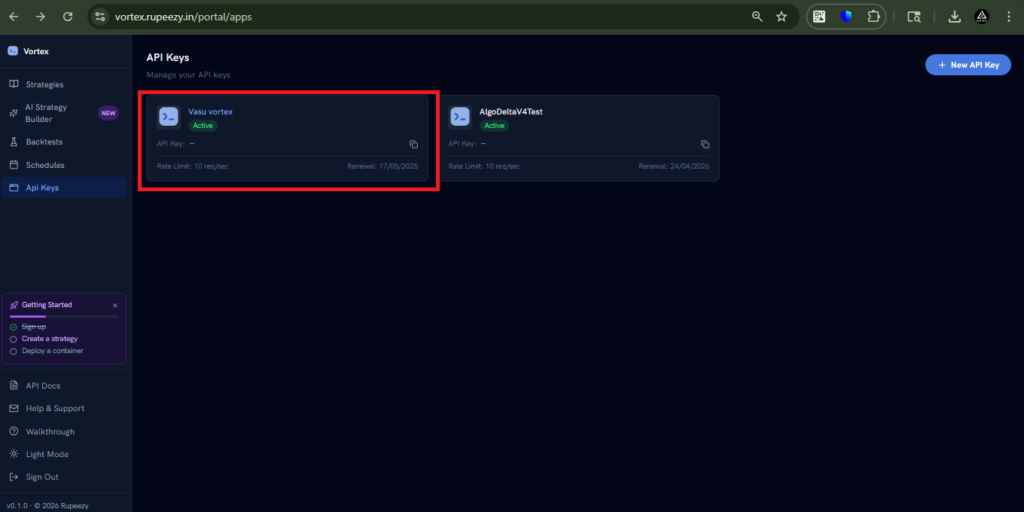
After logging into the portal Click on ‘New API Key’ in the top right corner.
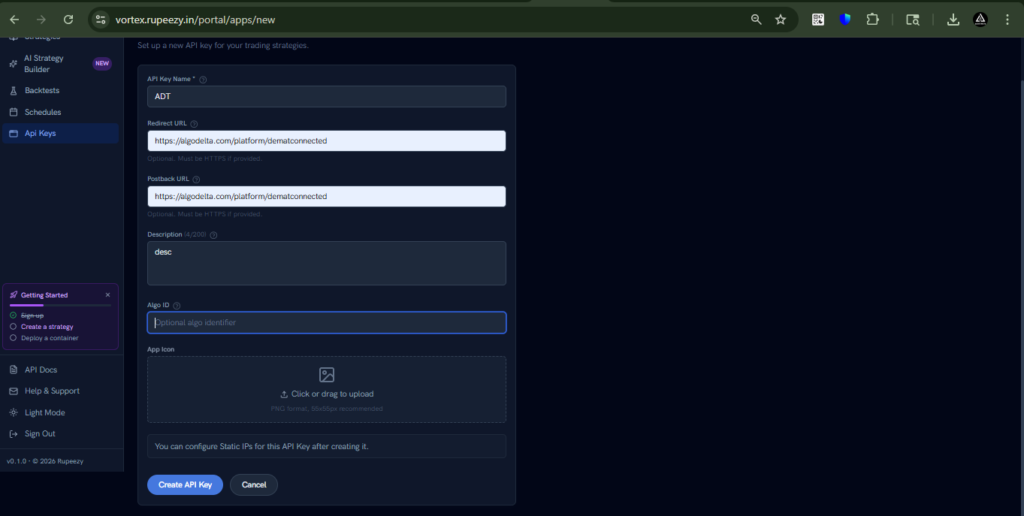
You will able to see the Below Screen.
Then, enter the ‘API Key Name.’ In the Redirect URL and Postback URL fields, enter https://algodelta.com/platform/dematconnected. Add any description as required, and then click on the ‘Create API Key’ button.
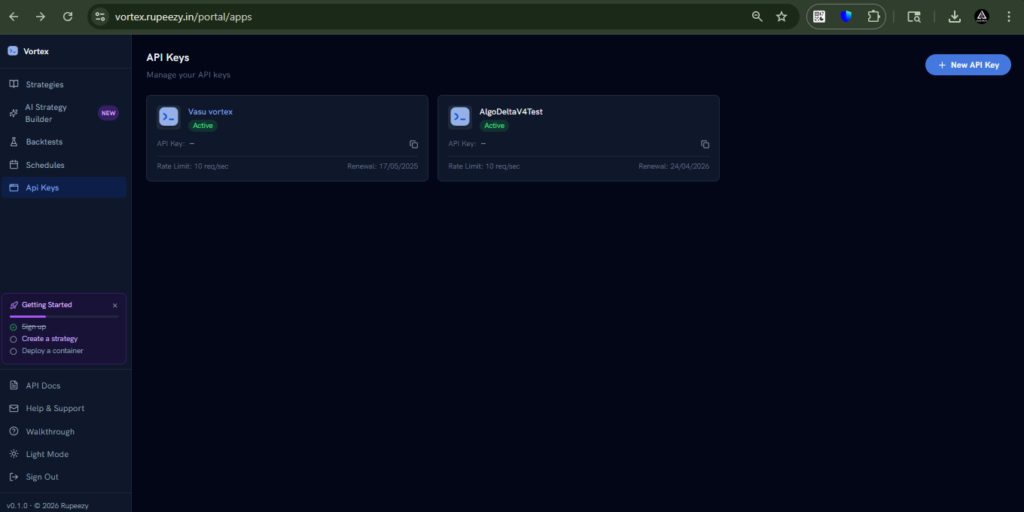
After this, you will be able to see a screen like this.
Then, click on it.
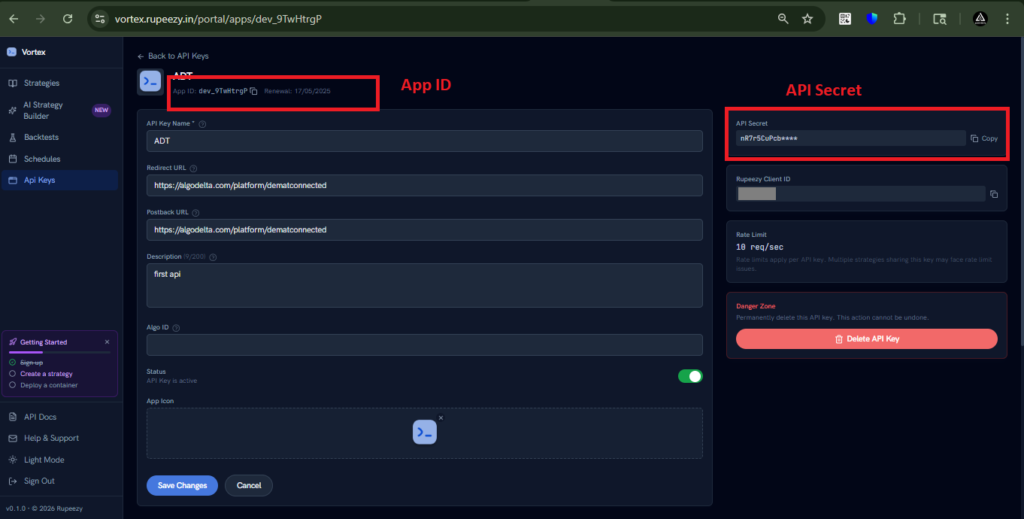
You will be able to see the ‘App ID’ and ‘API Secret Key.
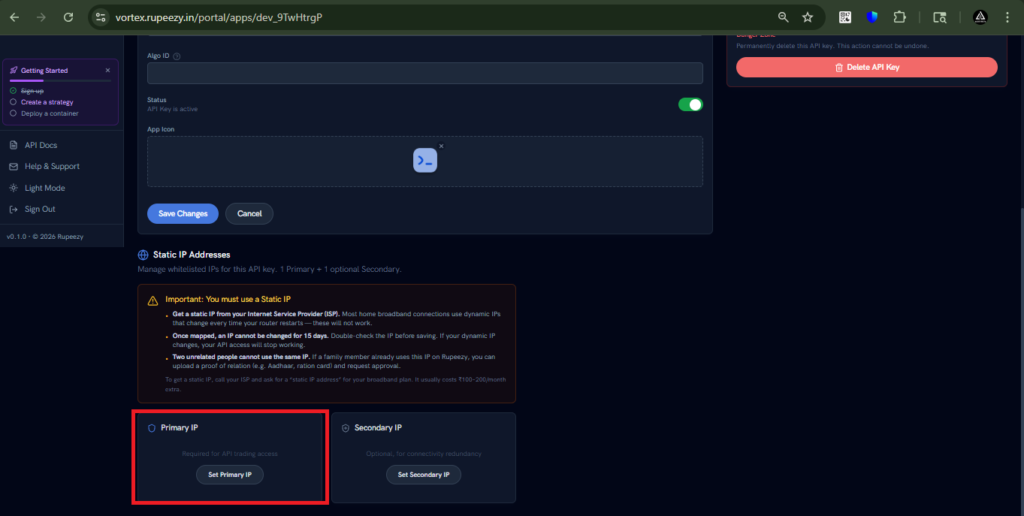
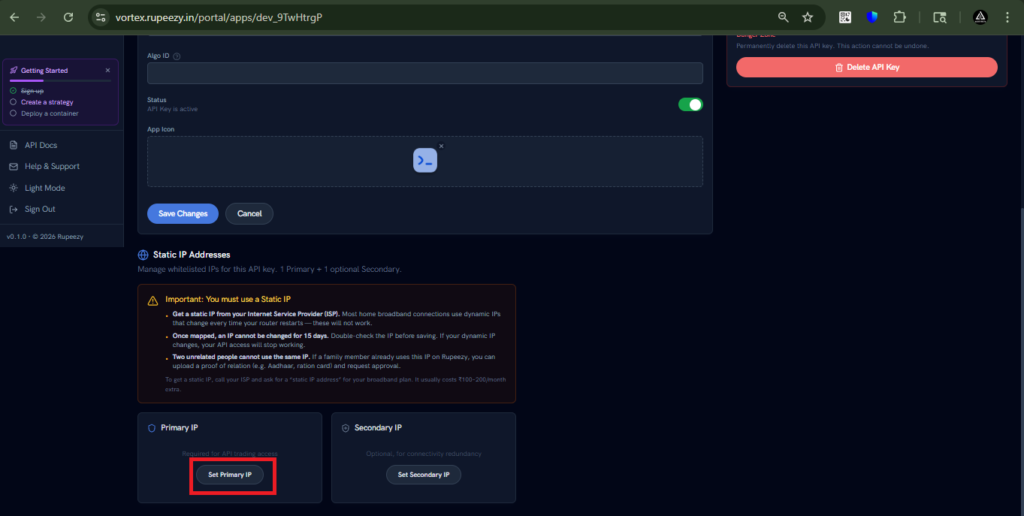
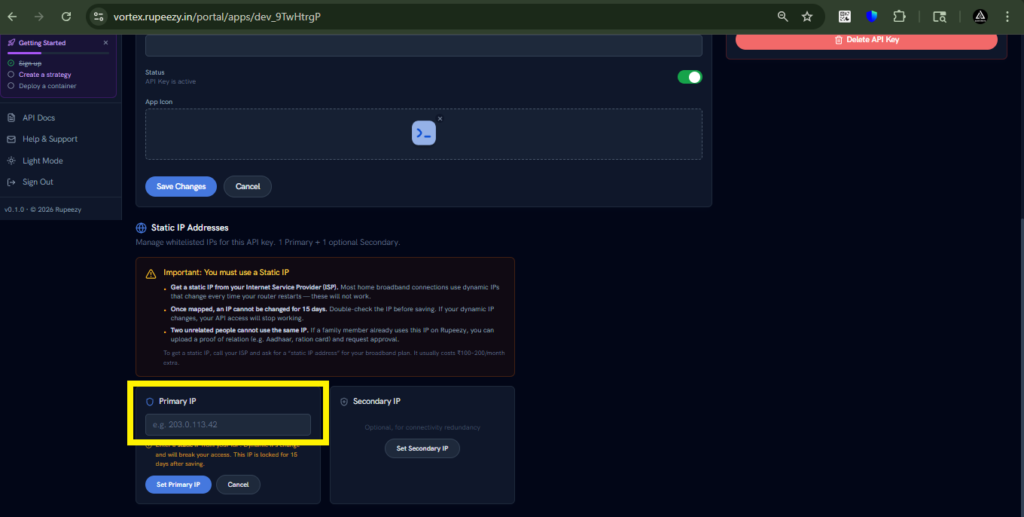
Now, scroll down to find the ‘Primary IP’ option. Click on ‘Set Primary IP’ and enter the Static IP obtained from AlgoDelta.
Step 8:
For getting Static IP
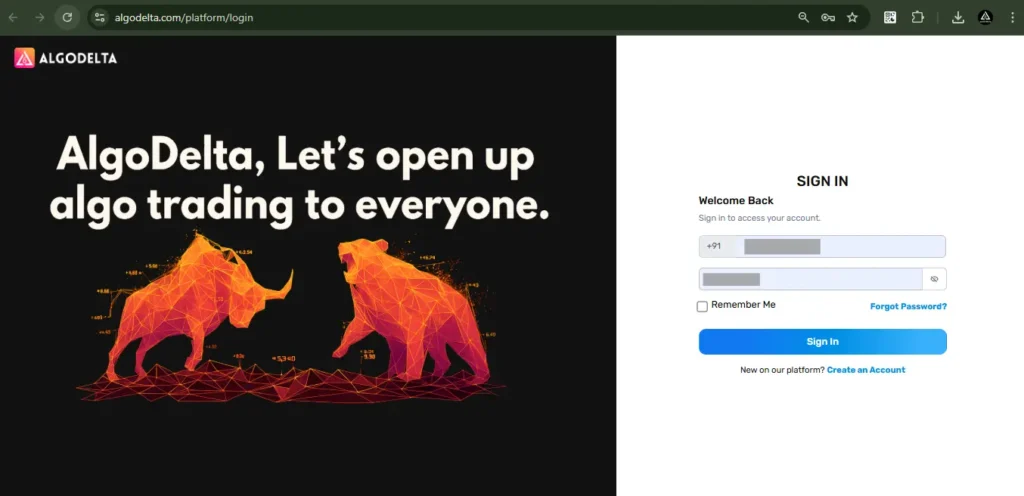
Now, go to AlgoDelta’s Copy Trading using the following link: https://algodelta.com/platform/login. Enter your AlgoDelta email ID and password.
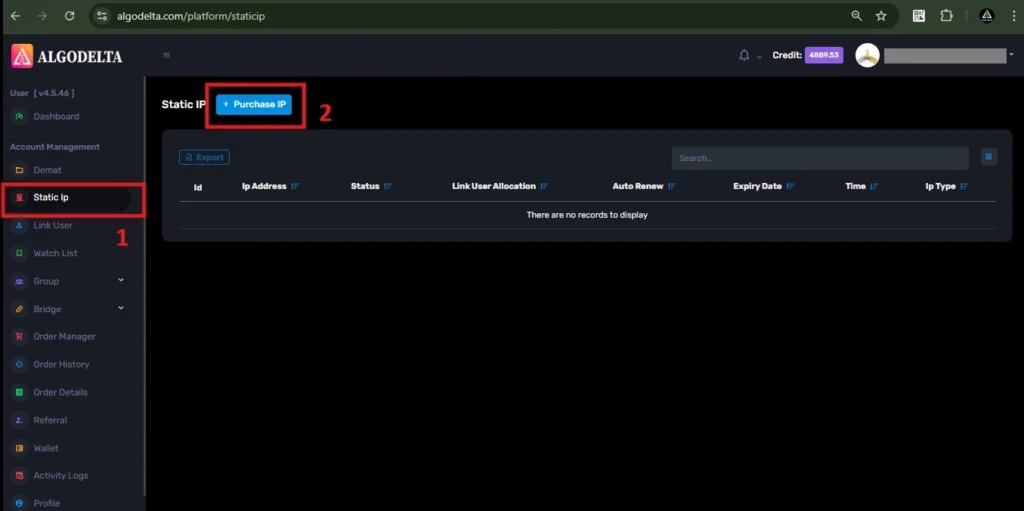
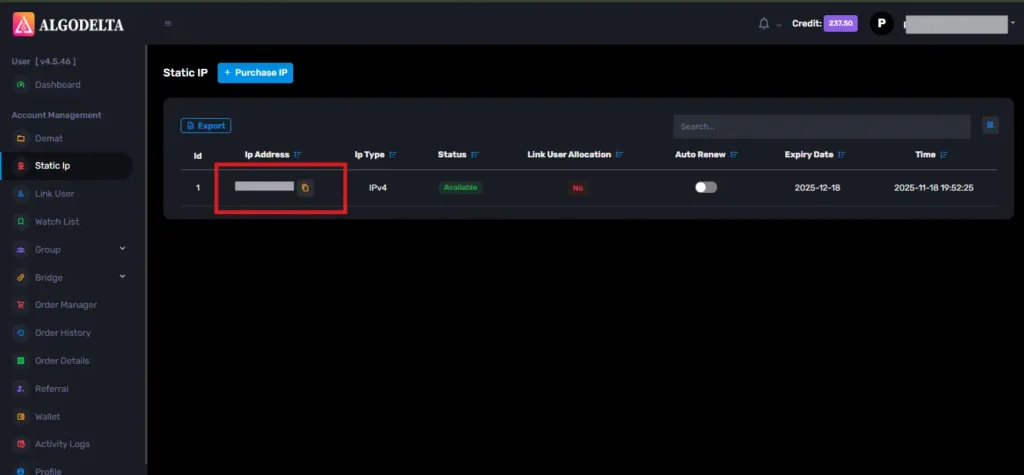
To get your Static IP, log in to your AlgoDelta account and navigate to the “Static IP” tab. Click on the “Purchase IP” button to continue.
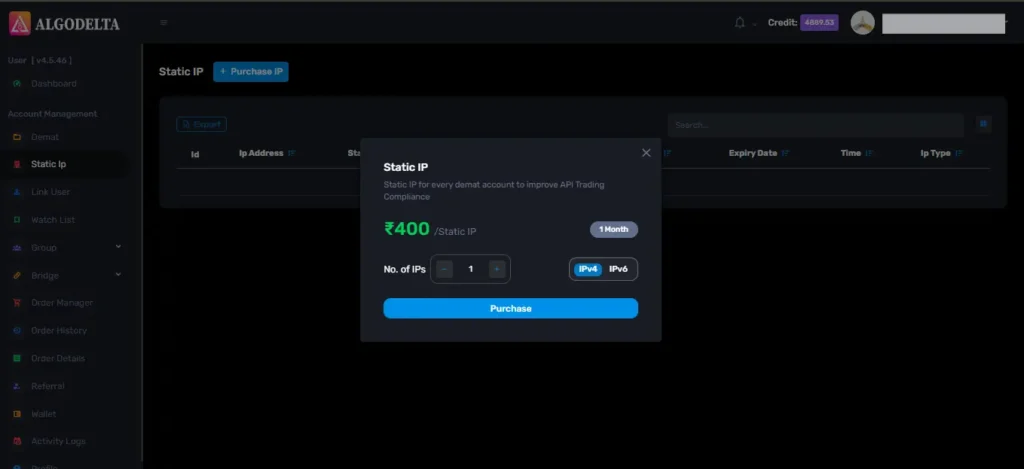
Next, select IPv4 , click on the Purchase button, and wait a few seconds for the Static IP to be activated.
Once the process is complete, you will be able to view your Static IP, which is required for connecting Alice blue One with AlgoDelta for secure copy trading.
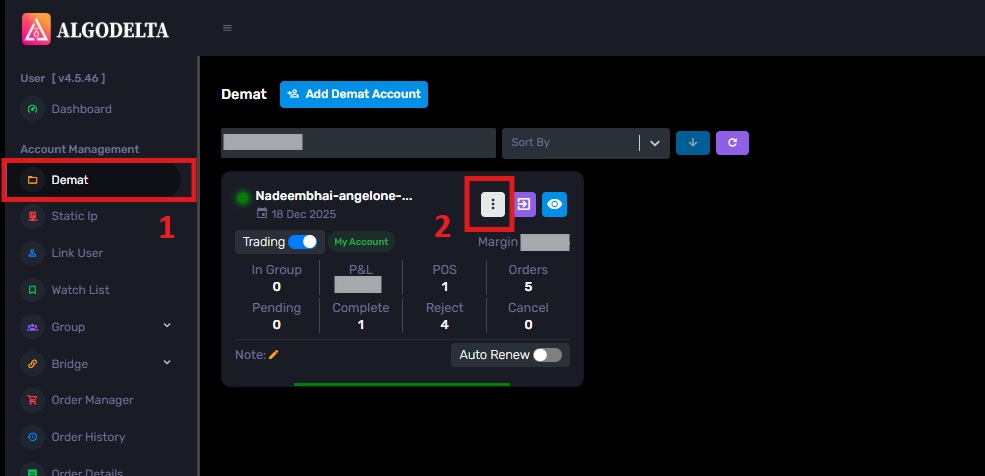
To bind the Static IP with your Alice blue account, go to the Demat tab and click on the three-dot menu. Select the Reconnect option.
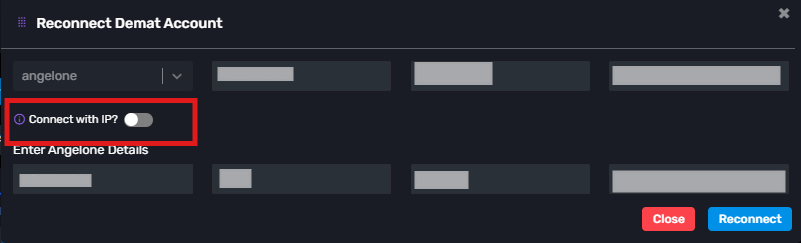
Next, enable the “Connect with IP” setting and choose the Static IP that you purchased and linked for Alice blue copy trading.
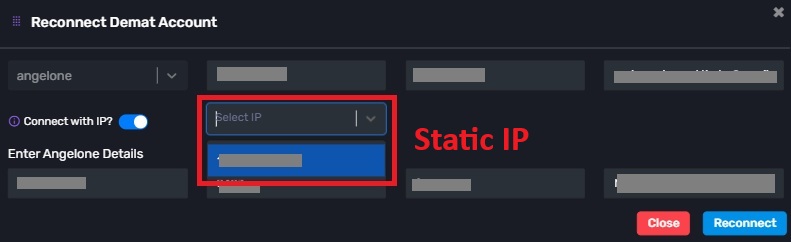
Then, click on the dropdown menu to view and select your Static IP for Alice Blue copy trading integration.
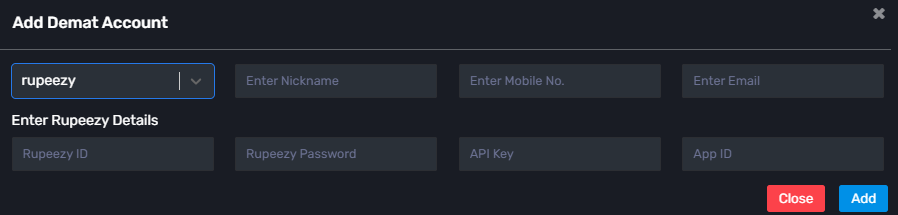
Enter the following details: Nickname, Mobile Number, Email, Asthatrade ID, Asthatrade Password, API Key, TOTP Key, and Application Code (generated from the Asthatrade (Rupeezy) mobile app and Vortex portal). Click ‘Add.’ A ‘Broker Connected’ pop-up will appear, confirming a successful connection.
Conclusion:
By following these steps, you will successfully connect your Asthatrade(Rupeezy) account to AlgoDelta’s Copy Trading software and gain access to its features for enhanced trading experiences.