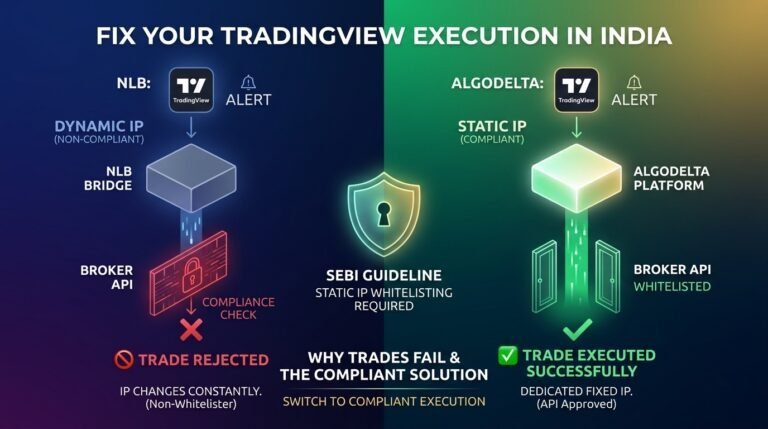
Place order from any trading view strategies and indicators

Table of contents
For Placing orders using TradingView follow given steps :
- Open the acocunt in Algodelta.
- Create Brige in Algodelta.
- Copy the webhook and paste it on Trading view.
- Done setting according to indicator or strategy in Trading view.
Open the acocunt in Algodelta
- First open the account in Algodelta using this link https://algodelta.com/platform/register.
- Enter Email , First name , Last name , Mobile number , Password , Date of birth , State , City and tick “I hereby confirm that I have read and agree to the Terms and Conditions.I understand the regulatory and legal implications of this declaration” and tick “I am not a robot”.
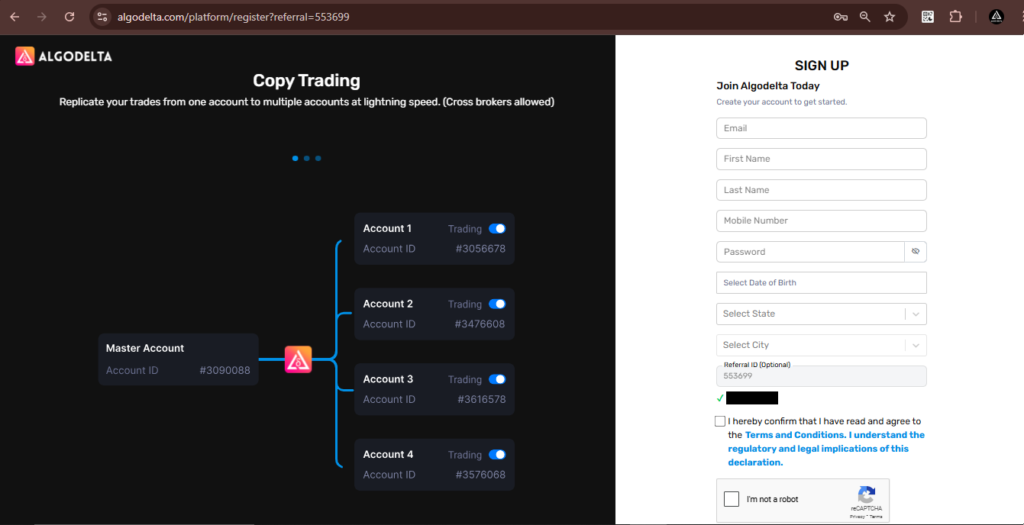
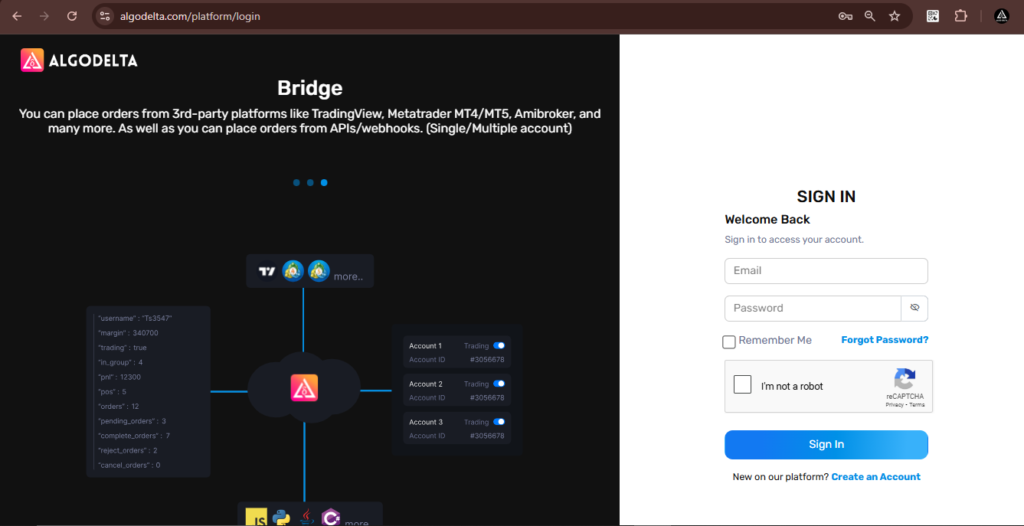
And then you login using this link “https://algodelta.com/platform/login”.
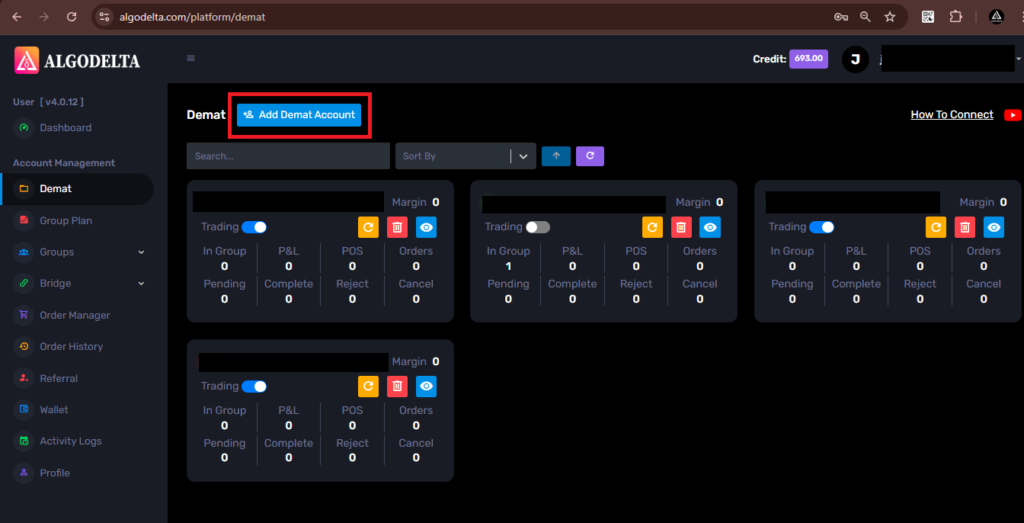
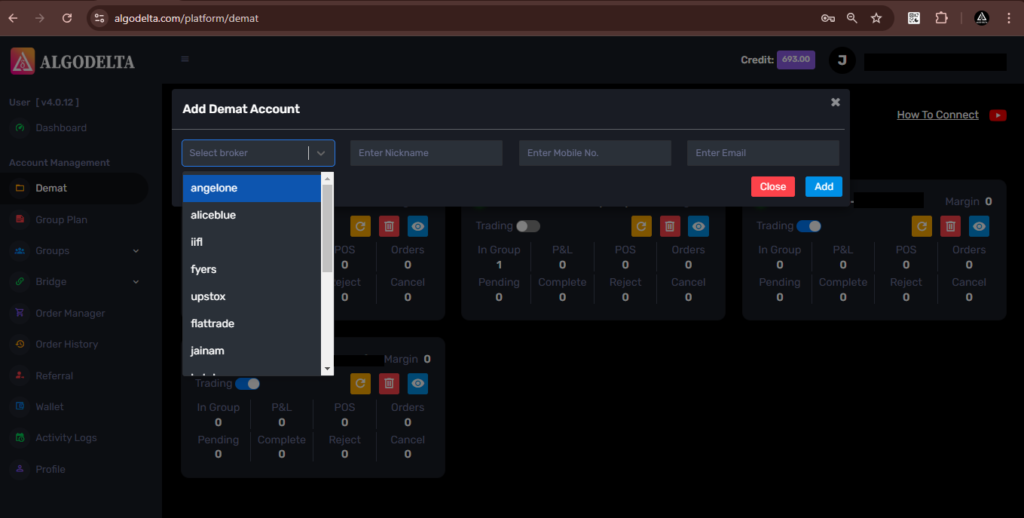
Now for connecting brokers click on “Demat” tab.
- For adding broker click on ‘Add Demat Account’ and select particular broker.
- Click on below link for connecting brokers.
Alice blue , Fyres , Upstock , Flatetrade , Kotak api , Kotak , Profitmart , Shoonya , zerodha , zerodha with api , motilal oswal , rupeezy , Dhan
Create Bridge in Algodelta
What is Bridge ?
A bridge acts as a mediator. Using this, you can receive trade signals from third-party platforms like TradingView, MT4/MT5, and AmiBroker with the help of webhooks. You can also place orders in multiple Demat accounts using the AlgoDelta Group Facility.
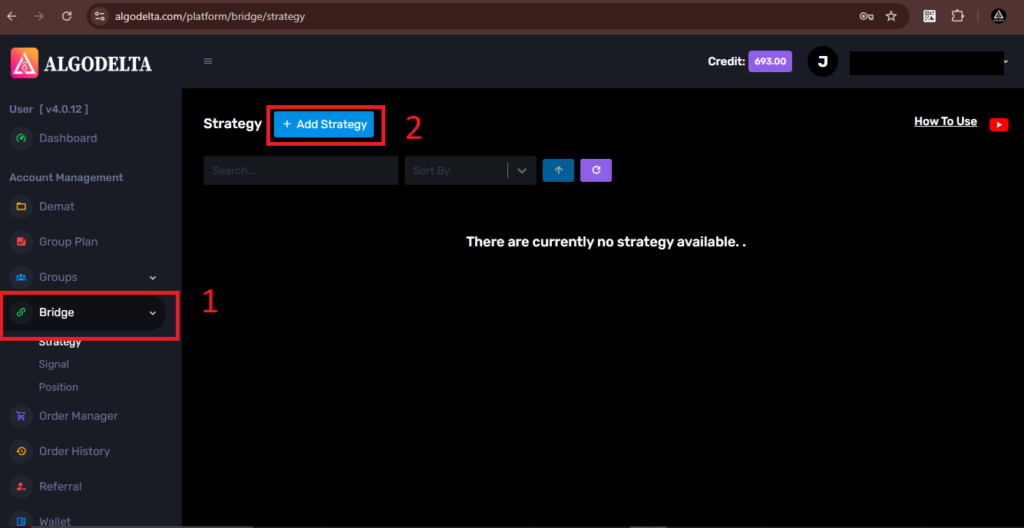
- Click on “Bridge” for trading view signals.
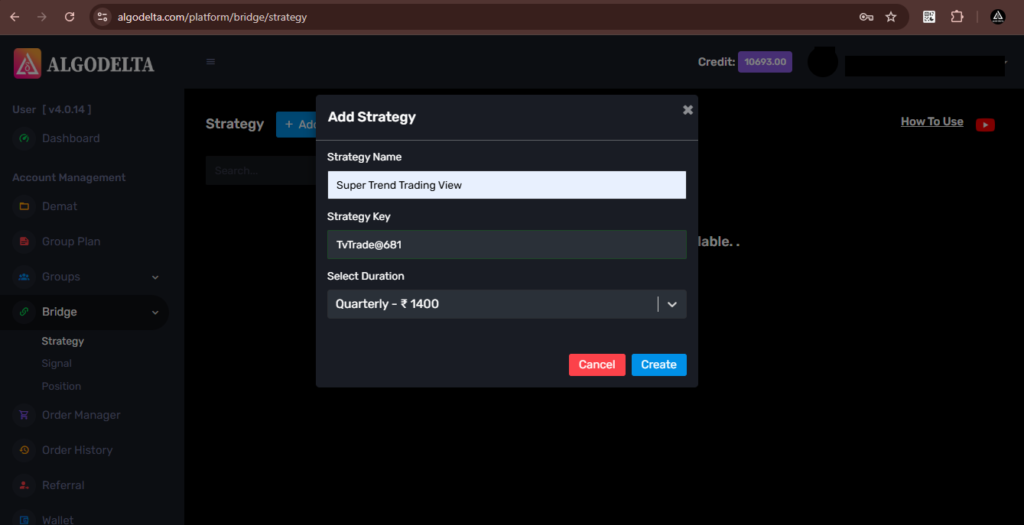
- Then click on “Add strategy” and enter the ‘Strategy Name’ , ‘Strategy Key’ (Strategy Key should be 8 characters long use a mix of uppercase and lowercase letters, numbers, and symbols) , ‘Select Duration’
- And click on create your Bridge is ready.
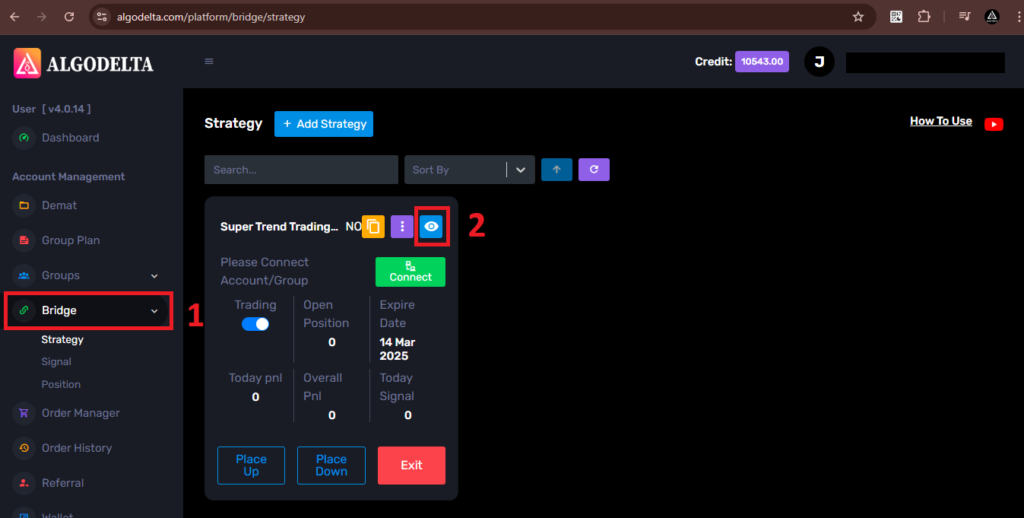
After creating the Bridge, click on the eye button to generate up and down signals.
What are UP and DOWN signals?
An UP signal is used when a buy trend occurs, while a DOWN signal is used when a sell trend occurs.
Now, click on the ‘Add’ button to create UP and DOWN signals.
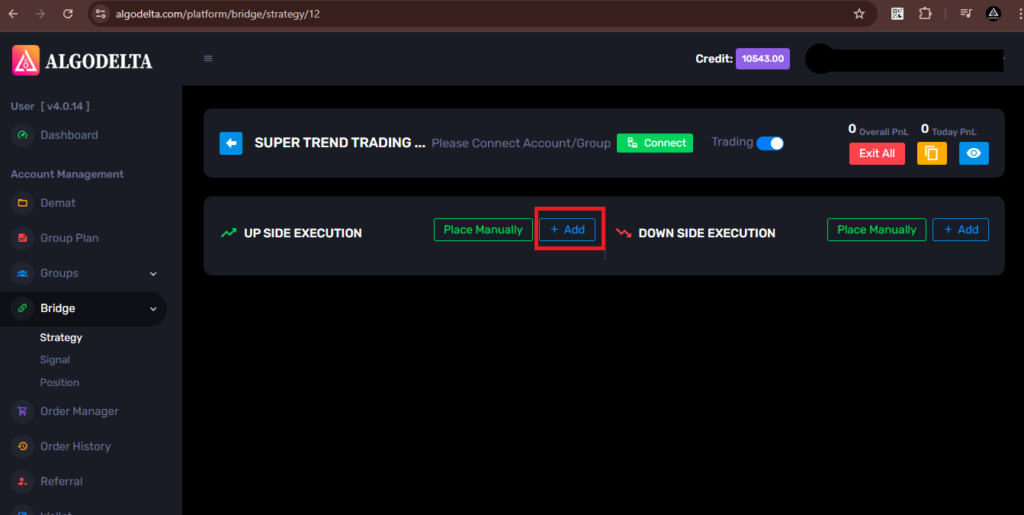
Then, you will see a pop-up menu.
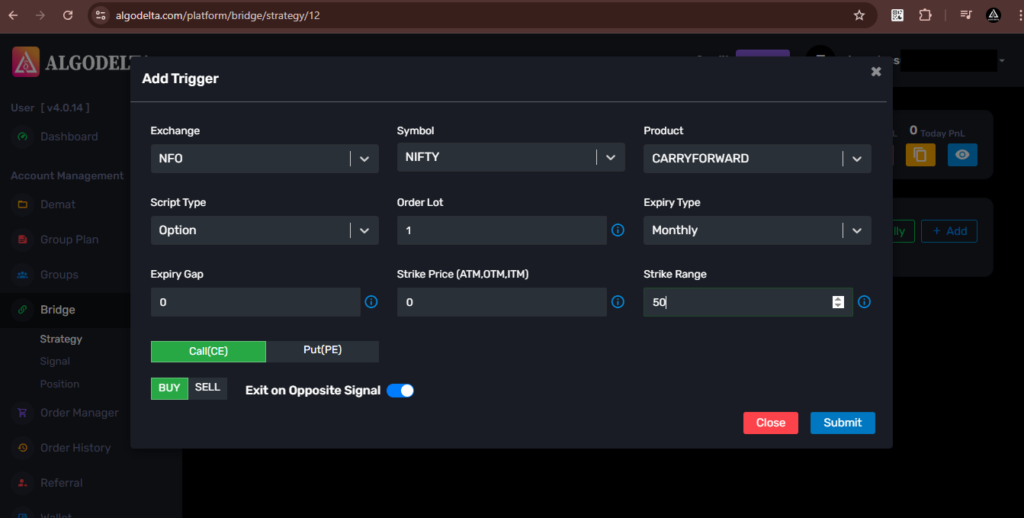
If you want to exit on a Sell signal, enable the ‘Exit on Opposite Signal’ button.
Copy the webhook
Click on the yellow button to copy the webhook.
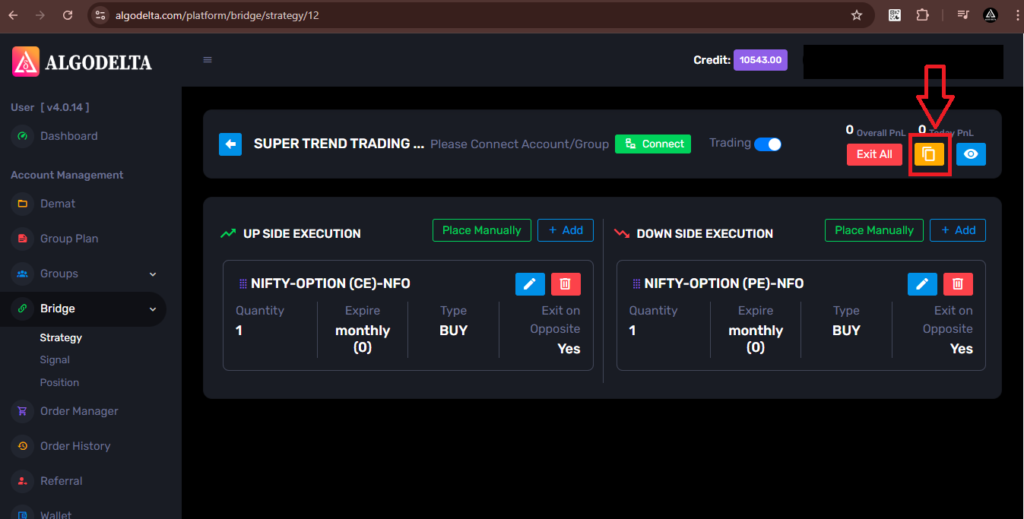
Now, open TradingView at https://www.tradingview.com/.
For placing orders using Tradingview strategy
Watch the video here to learn how to place orders using a TradingView strategy.
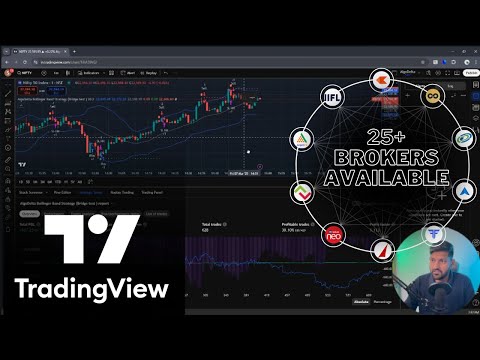
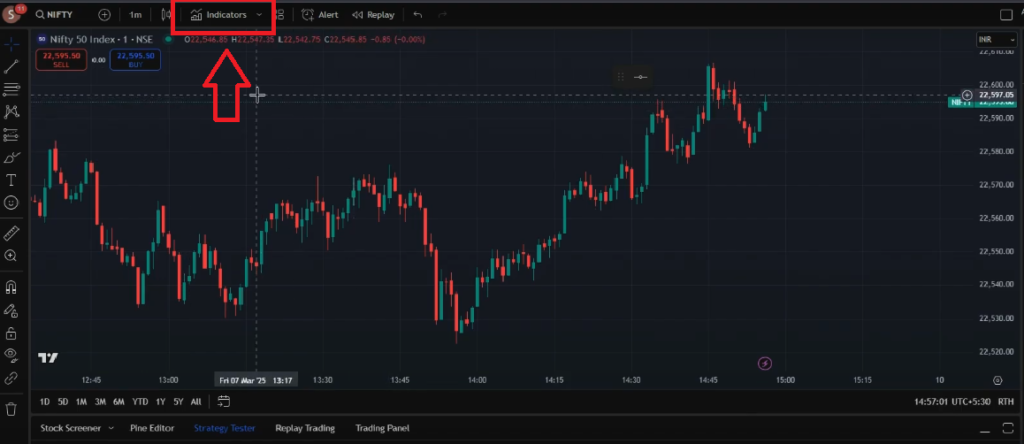
- Click on ‘Indicators’.
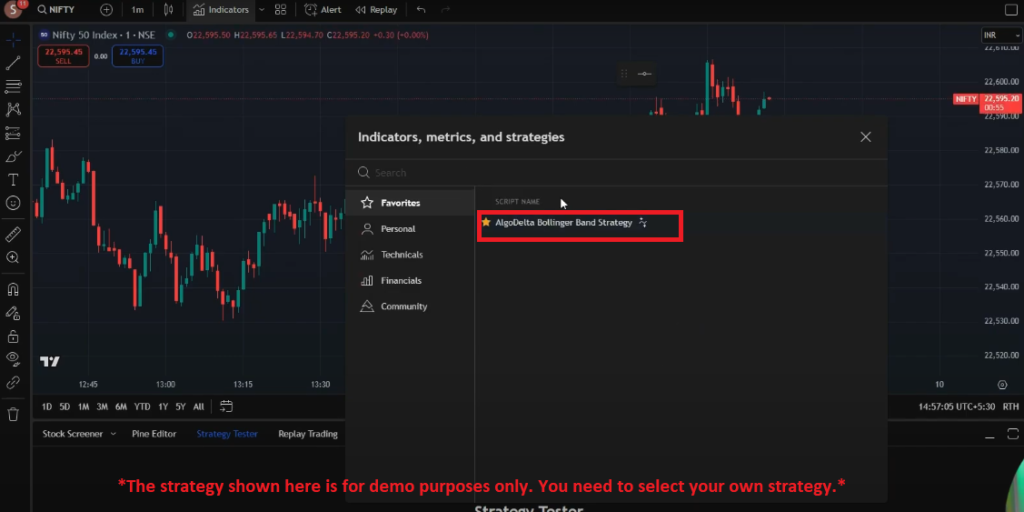
- Select your preferred strategy.
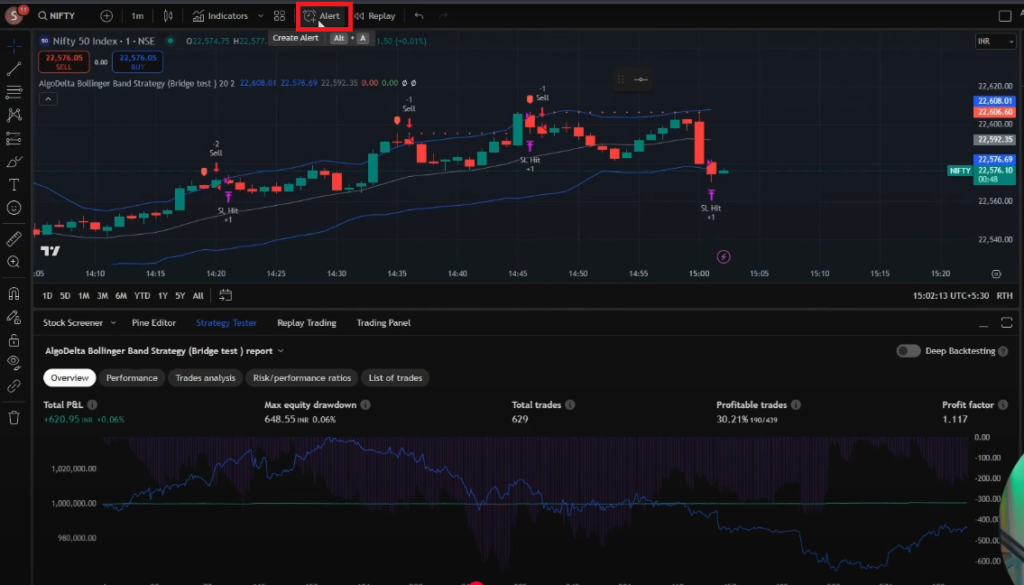
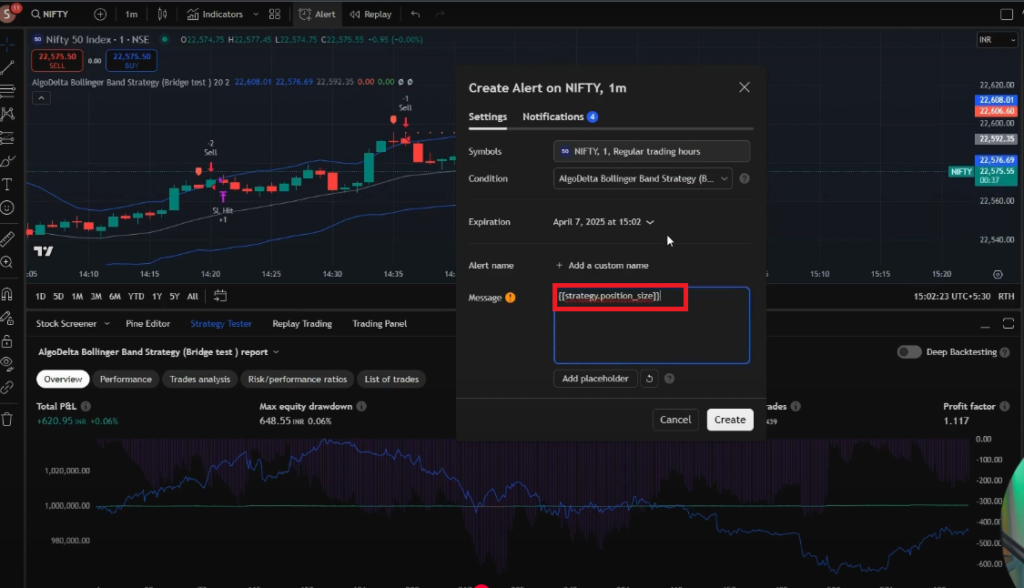
- Then, click on ‘Alert’.
Select your strategy from the ‘Condition’ dropdown.
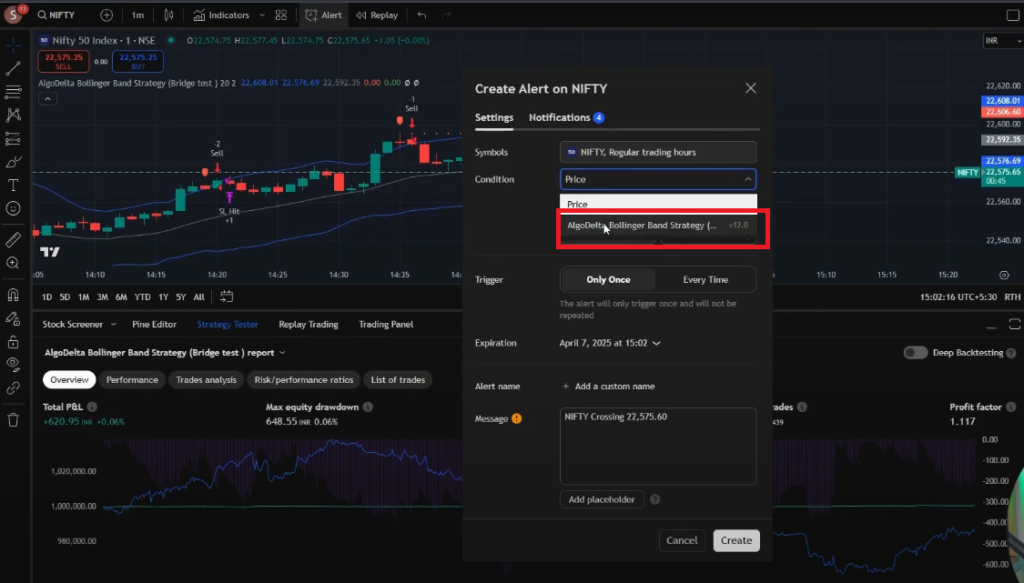
Now, enter {{strategy.position_size}} in the ‘Message’ field.
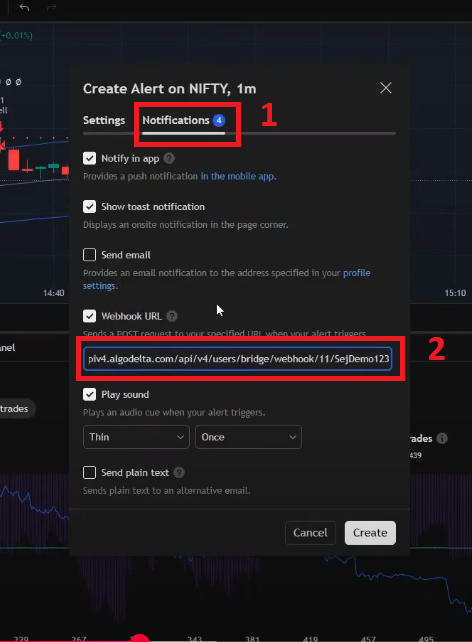
Now, click on ‘Notifications’ and paste the URL copied from AlgoDelta by clicking the yellow button into the ‘Webhook URL’ field.
ex : https://apiv4.algodelta.com/api/v4/users/bridge/webhook/12/FxTrade1
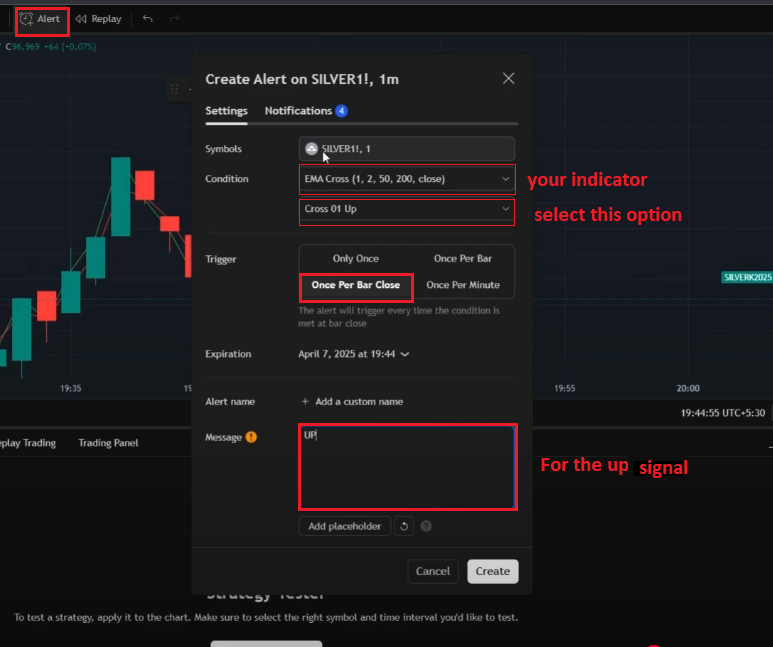
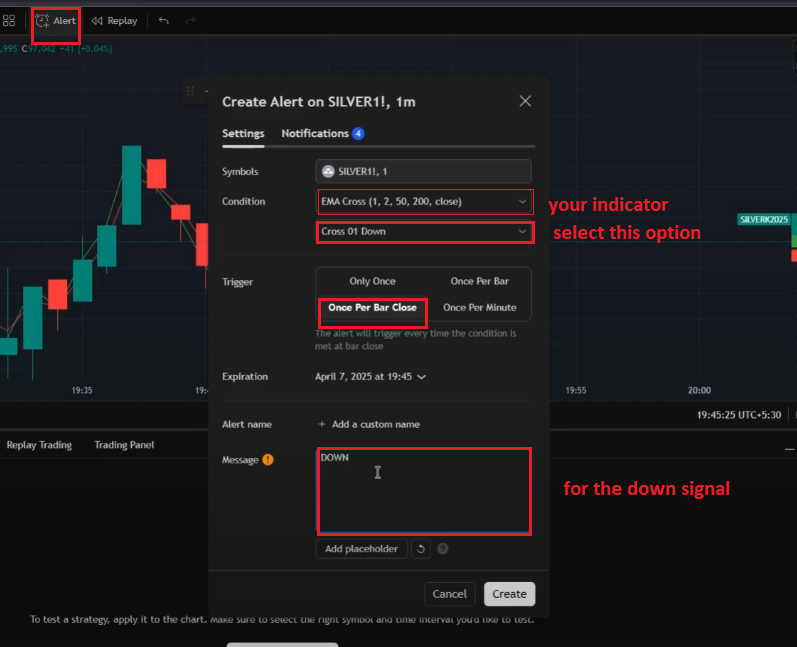
For placing orders using the TradingView indicator:
For the up signal
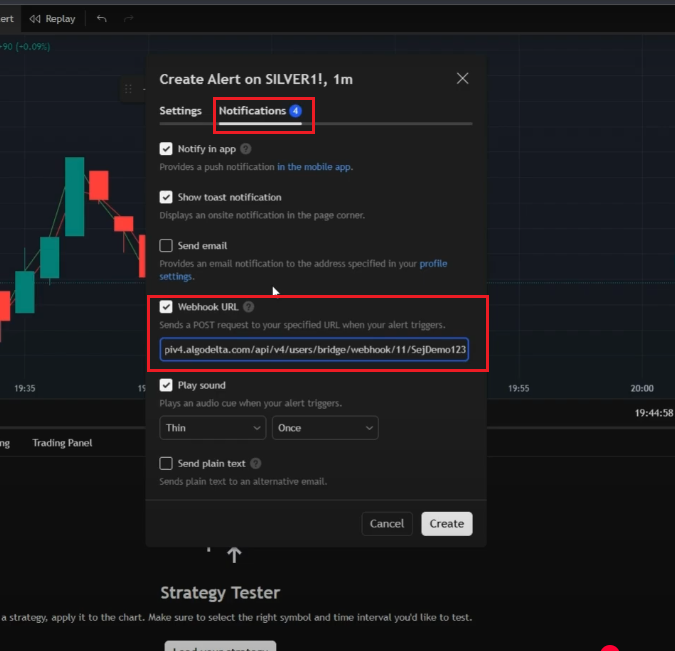
For the Down signal
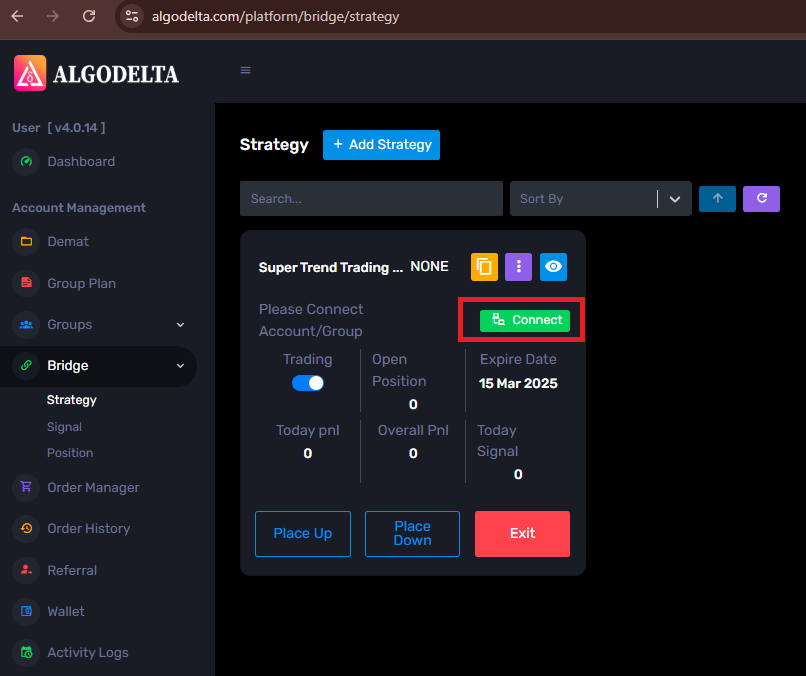
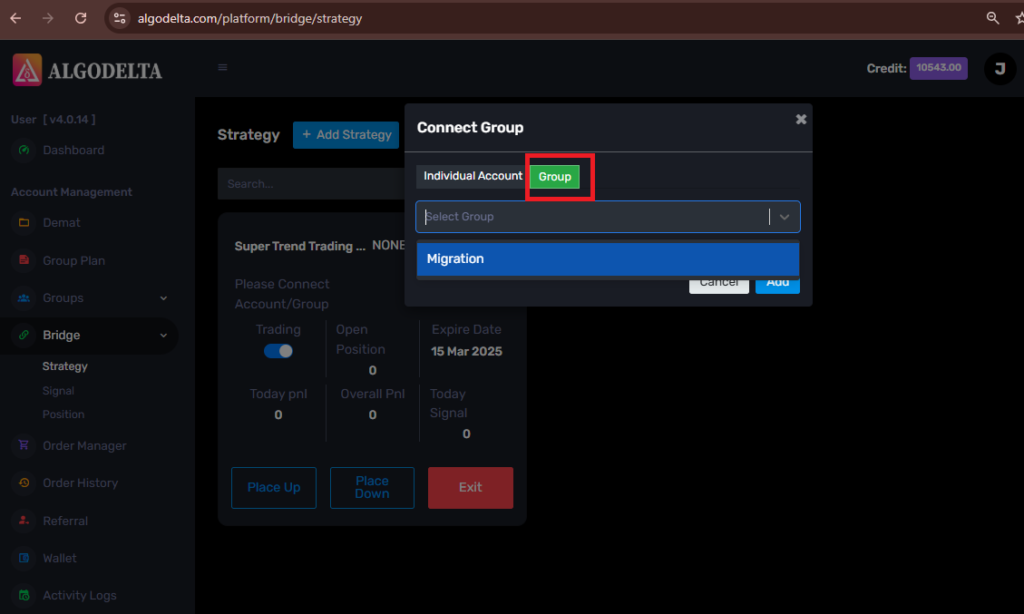
For placing orders in multiple demat accounts:
Follow these screenshots to place orders in multiple demat accounts using TradingView.
Wathch the video on “Place Order from TradingView strategy and indicator to Any Broker“.
All details mentioned in AlgoDelta are for informational and demo purposes only. AlgoDelta does not provide profit-making statements.

Written by
The AlgoDelta support team writes setup guides for copy trading, broker API connections and TradingView automation, based on thousands of real customer setups.